
Descarga e inicio de un proyecto#
Downloading and Starting a Project
Este tutorial te guía paso a paso para descargar, iniciar y detener un proyecto en VEXcode IQ (2.ª generación). Al finalizar, habrás descargado tu proyecto al Brain, lo habrás ejecutado y lo habrás detenido.
Crea un proyecto en el espacio de trabajo.
Asegúrese de que su robot esté conectado a VEXcode. Consulte Conexión con su robot si aún no está conectado.
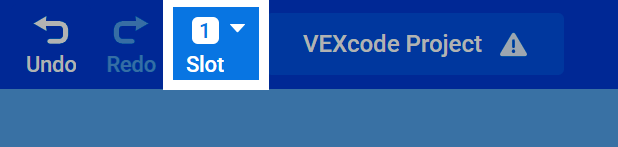
Seleccione el número de ranura en la parte superior de la página para cambiar la ranura en la que se descargará el proyecto en el Brain. Hay un máximo de 8 ranuras diferentes.
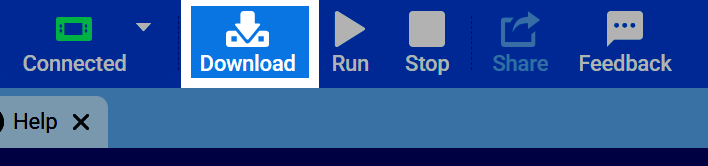
Seleccione Descargar para descargar el proyecto al Brain.
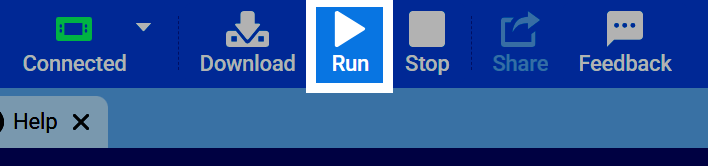
Seleccione Ejecutar para que su robot comience a ejecutar el proyecto.
Seleccione Detener para detener el proyecto.
