Utilizar la ayuda#
Using Help
Este tutorial te guiará en el uso de la pestaña Ayuda en VEXcode IQ (2.ª generación). Al finalizar, sabrás qué hace cada bloque utilizando la pestaña Ayuda.
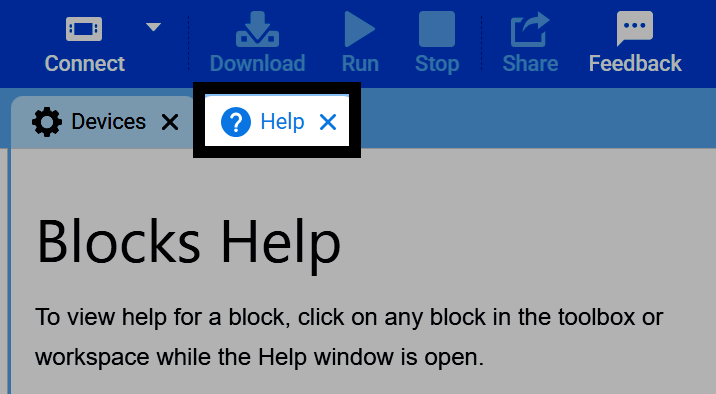
Seleccione la pestaña Ayuda en la parte superior derecha de VEXcode.
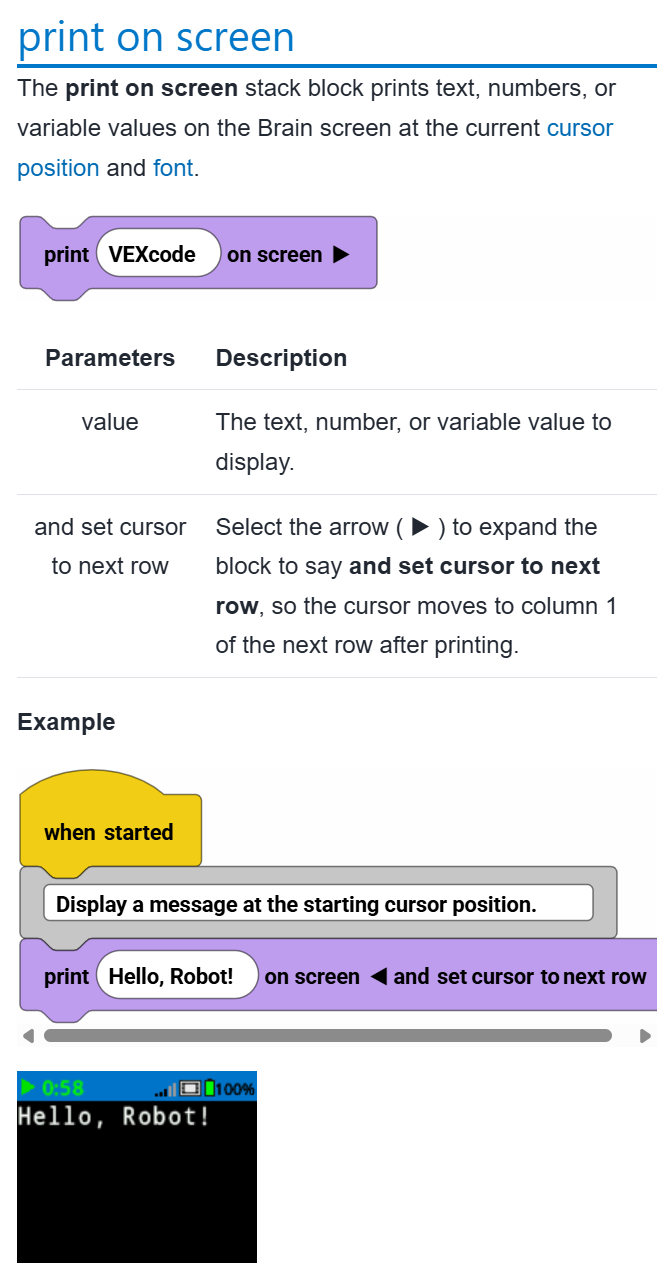
Seleccione un bloque de la caja de herramientas o de su espacio de trabajo para abrir la información de ayuda correspondiente. Cada entrada de ayuda incluye información sobre los parámetros del bloque, un ejemplo que muestra su funcionamiento y cualquier gráfico adicional que le ayude a comprenderlo.
Para comenzar a recrear el ejemplo mostrado, seleccione el icono de candado. Esto garantiza que VEXcode no abra una nueva página de ayuda si selecciona un bloque diferente.