
Almacenamiento de datos#
Este tutorial explica cómo crear y usar variables en VEXcode IQ (2.ª generación). Al finalizar, sabrás cómo crear una variable y usarla en un proyecto.
Las variables permiten almacenar datos durante un proyecto, como un número, un valor booleano (verdadero/falso) o una lista de elementos.
Dirígete a la categoría Lógica - Variables en la caja de herramientas y selecciona Crear una variable.
Seleccione el tipo de variable que desea crear.
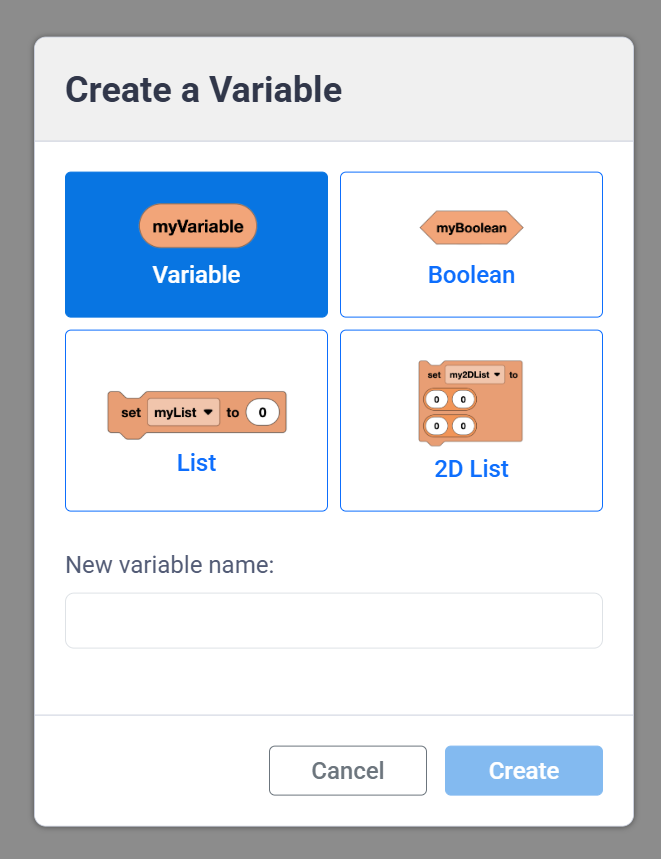
Las variables numéricas pueden almacenar texto o un número.
(my_variable)
Los booleanos almacenan valores verdaderos o falsos.
<my_boolean>
Las listas almacenan una secuencia de texto y/o números.
establecer [my_list v] a (0) (0) (0)
Las listas bidimensionales almacenan una secuencia de texto y/o números, organizada en filas y columnas. Son útiles cuando se desea almacenar gran cantidad de datos a la vez y mantener todos los valores organizados.
establecer [my_2d_list v] a ([0] [0]) ([0] [0])
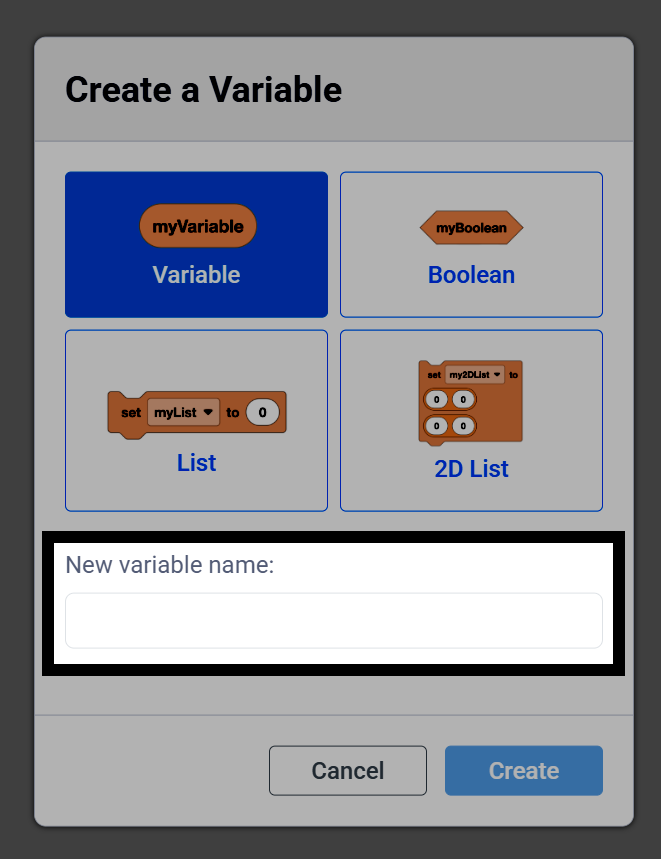
Escribe un nombre para tu variable.
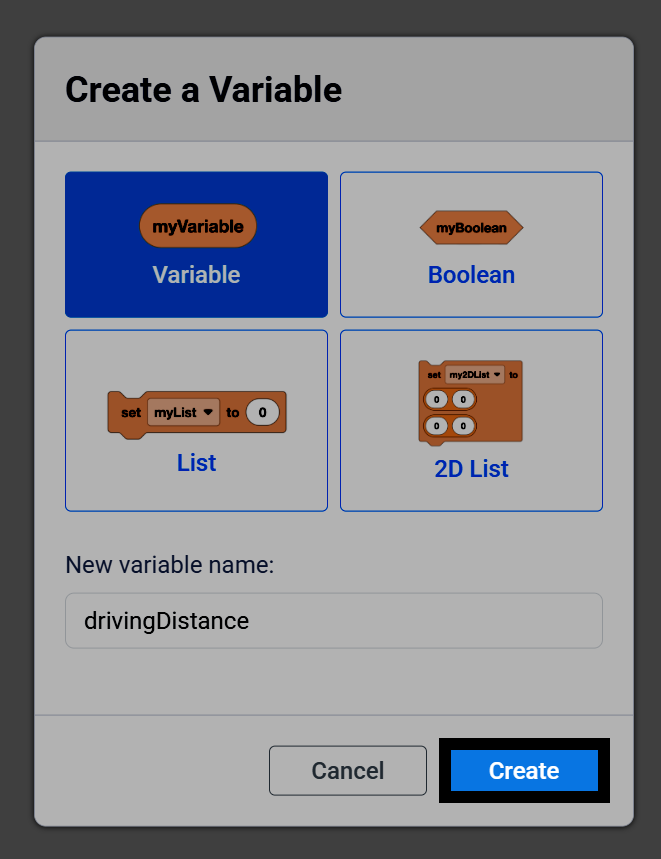
Seleccione Crear para agregar su variable a la caja de herramientas.
Además de la variable, la caja de herramientas incluye bloques que puedes usar para cambiar su valor durante el proyecto. Por ejemplo, las variables numéricas incluyen un bloque de informe, junto con los bloques establecer variable numérica y cambiar variable numérica.
(my_variable)
establecer [my_variable v] a (1)
cambiar [my_variable v] en (1)
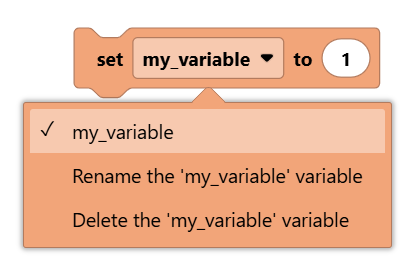
Seleccione el menú desplegable de un bloque de variables para elegir una variable diferente, o para cambiar el nombre o eliminar la variable seleccionada actualmente.
En este proyecto, al presionar el botón Check del Cerebro se agregará 1 a una variable llamada count y se mostrará en la Consola, mientras que al presionar el botón Left del Cerebro se restablecerá a 0.
cuando inicie
establecer [count v] a [0]
por siempre
si <¿botón [Verificar v] del Brain presionado?> entonces
[Add 1 to the count.]
cambiar [count v] en (1)
imprimir (count) en consola ◀ y mover cursor a la siguiente fila
si no, si <¿botón [◀ v] del Brain presionado?> entonces
[Reset the count back to 0.]
establecer [count v] a [0]
imprimir (count) en consola ◀ y mover cursor a la siguiente fila
fin
fin