Apertura de un proyecto#
Opening a Project
Este tutorial te guiará paso a paso para abrir un proyecto guardado en VEXcode IQ (2.ª generación). Al finalizar, tendrás tu proyecto cargado y listo para trabajar.
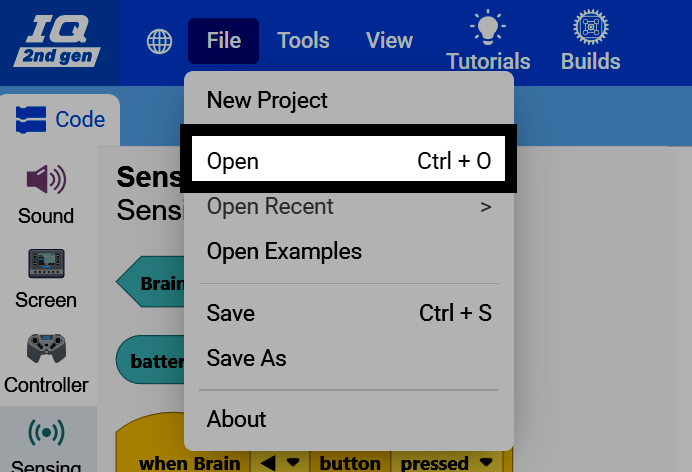
Seleccione Archivo en la parte superior izquierda de VEXcode.

Seleccione Abrir.
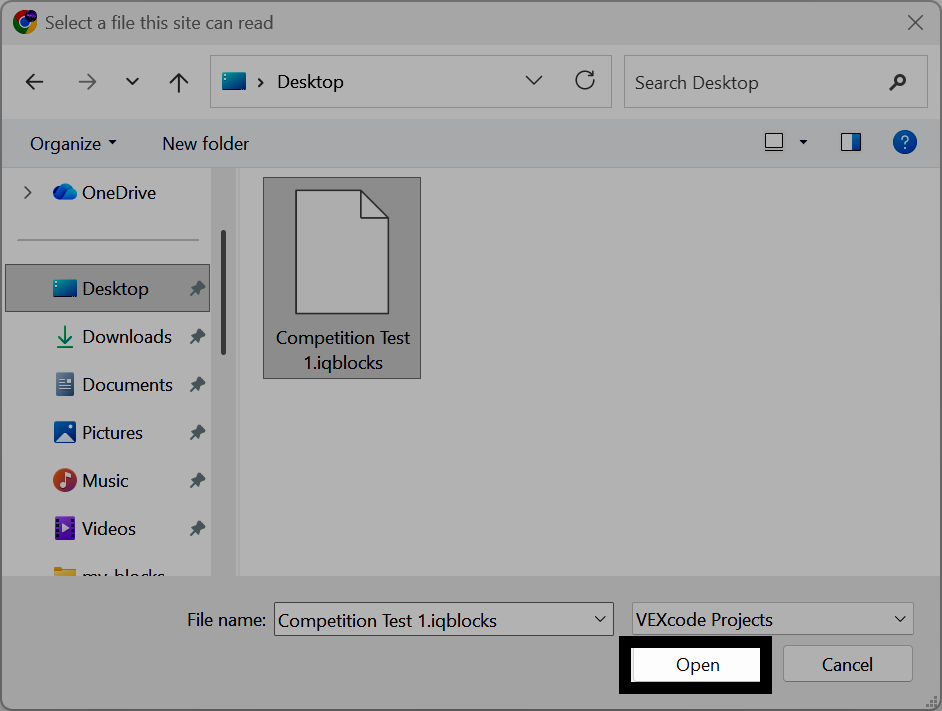
Navegue hasta el archivo de proyecto que desea abrir y selecciónelo. Aquí se muestra un dispositivo Windows como ejemplo.
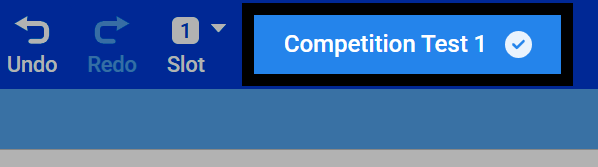
El nombre del proyecto que aparece en la parte superior de VEXcode cambiará para mostrar el nombre del archivo que acaba de abrir, y VEXcode comenzará a guardar automáticamente su proyecto.