
Mis bloques#
My Blocks let you group a sequence of blocks you’ll want to use multiple times in a project, without needing to duplicate or recreate that sequence over and over. This can help break up longer projects to make them easier to work with.
Create a My Block#
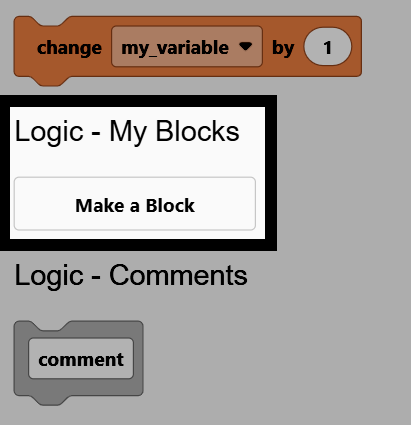
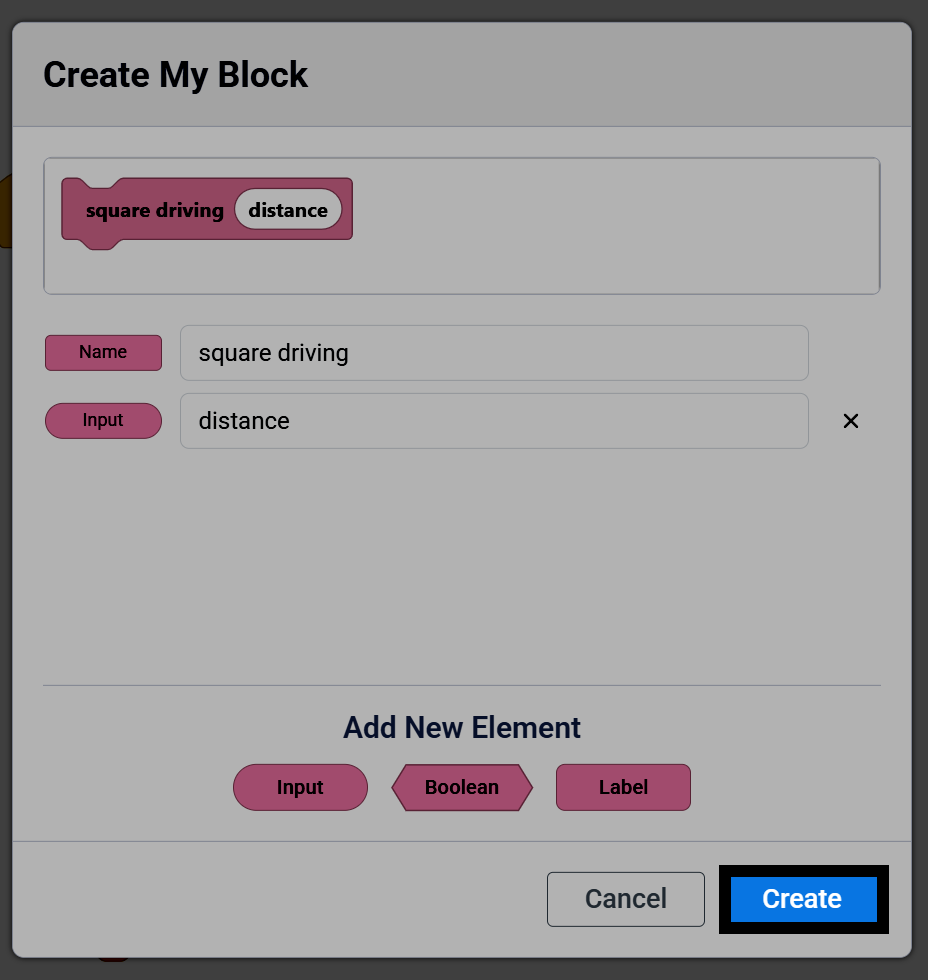
Go to the Logic - My Blocks category in the toolbox, and select Make a Block.
Name Your Block#
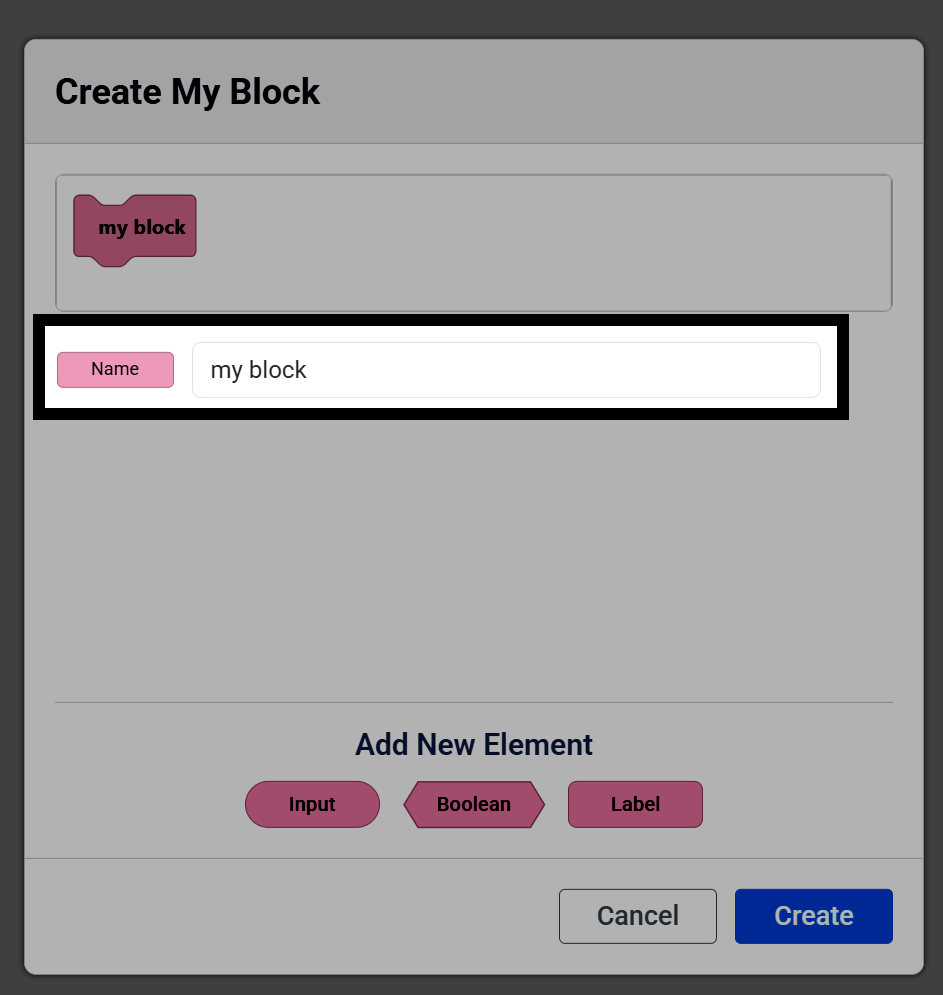
Change the name of your My Block.
Add an Element#
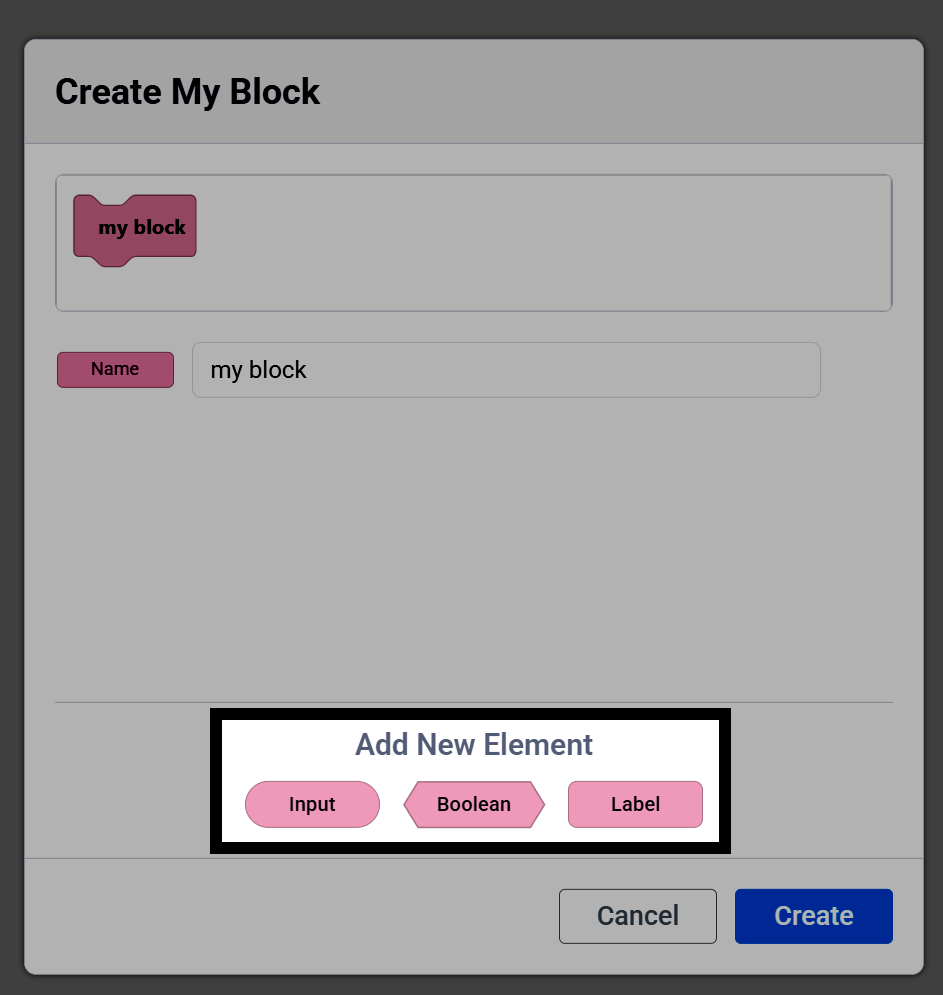
Select an element to add to the block:
Input provides a place to enter text or numbers.
Boolean provides a place for a true or false value.
Label lets you add text to the My Block for organization.
Name the Element#
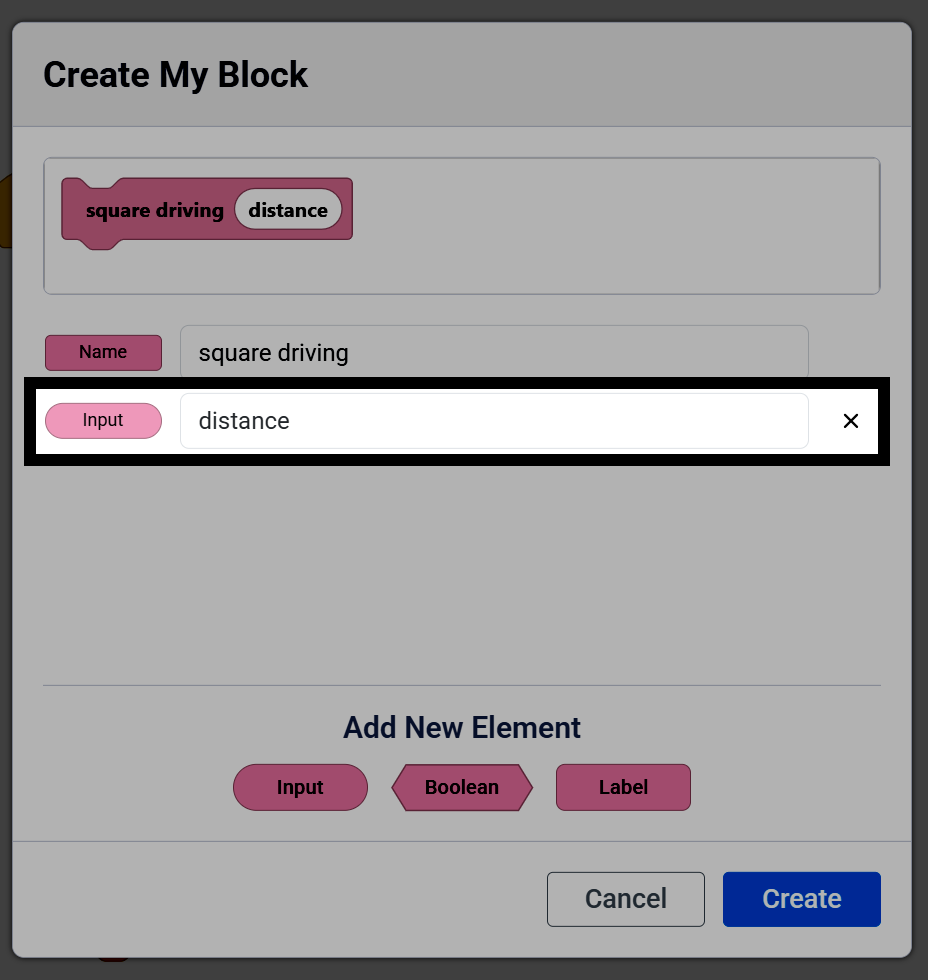
Changing an element’s name changes the name of that My Block parameter. It does not change how the My Block functions.
Create the Block#
Once you’re done setting up your My Block, select Create.
Define the My Block#
View the define Block#
A define hat block for your My Block will appear in the workspace, and the My Block will appear in the toolbox. Attach blocks below the define block — any blocks attached will run when the My Block is used in the project.
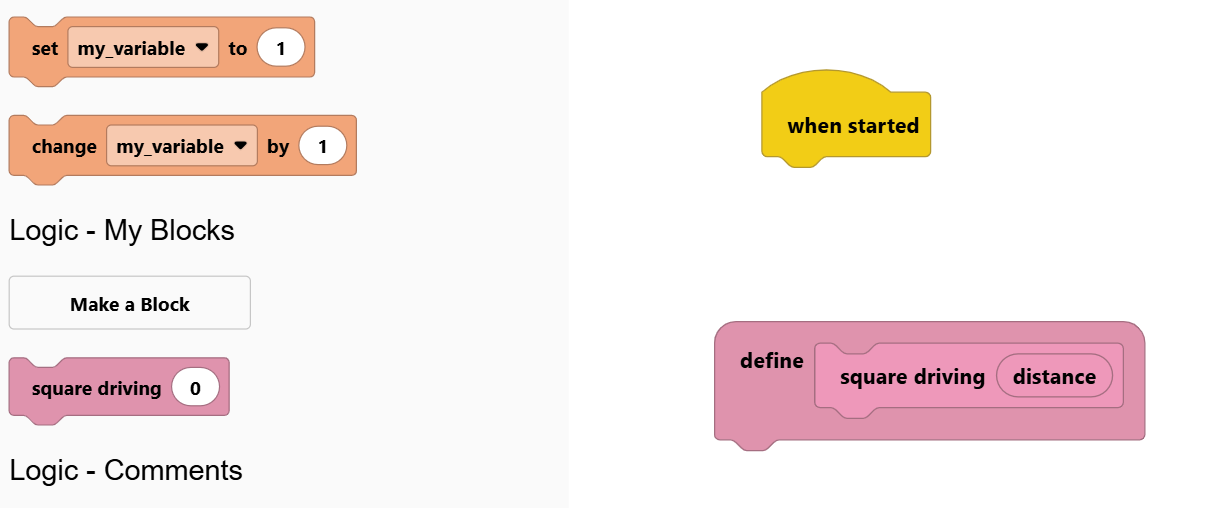
Note: If you delete a My Block’s define block from your workspace, it will also remove that My Block from your toolbox, and you will need to recreate it.
Use a Parameter#
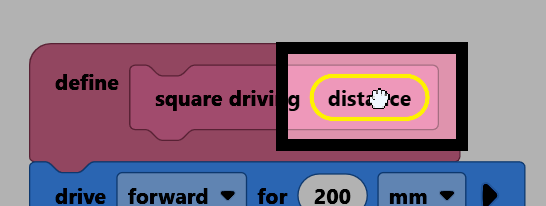
To use a parameter from your My Block, select it on the define block and drag it out to create a usable reporter or Boolean block.
Add the Parameter to a Block#
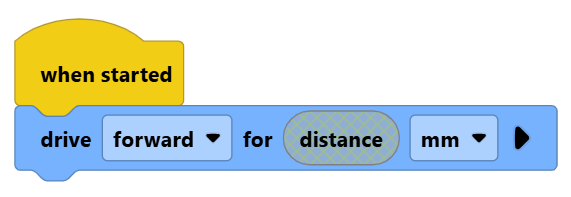
Drop the parameter into another block’s input to use its value. That parameter can only be used within the My Block’s own stack of blocks.
definir square driving (distance) :: custom
conducir [adelante v] por (distance) [mm v] ▶
girar [derecha v] por (90) grados ▶
If you try to use a My Block’s reporter or Boolean block outside of that My Block’s own stack of blocks, it will be grayed out to show that it will not work.
Use the My Block#
The new My Block can be pulled from the toolbox and used in the project. For example, calling square driving with 50 as the distance, repeated 4 times, drives the robot in a square pattern.
cuando inicie
repetir (4)
square driving [50]
fin