
കൺസോൾ#
ആമുഖം#
VEXcode GO കൺസോൾ, VEXcode-ലെ കൺസോൾ ടാബിൽ പ്രദർശിപ്പിക്കും. ഒരു പ്രോജക്റ്റ് പ്രവർത്തിക്കുമ്പോൾ കൺസോൾ രീതികൾക്ക് ടെക്സ്റ്റ്, നമ്പറുകൾ, വേരിയബിൾ മൂല്യങ്ങൾ എന്നിവ പ്രദർശിപ്പിക്കാൻ കഴിയും. കൺസോൾ കഴ്സർ ഒരു പുതിയ വരിയിലേക്ക് നീക്കാനും, കൺസോൾ മായ്ക്കാനും, ഉപയോക്തൃ ഇൻപുട്ട് വായിക്കാനും, നിറം മാറ്റിയതിനുശേഷം അച്ചടിച്ച വാചകത്തിന്റെ നിറം സജ്ജമാക്കാനും, VEXcode-ന്റെ മോണിറ്റർ ടാബിൽ വേരിയബിളുകളോ സെൻസർ മൂല്യങ്ങളോ നിരീക്ഷിക്കാനും അവയ്ക്ക് കഴിയും.
എല്ലാ രീതികളുടെയും ഒരു ലിസ്റ്റ് താഴെ കൊടുക്കുന്നു:
പ്രവർത്തനങ്ങൾ — ടെക്സ്റ്റ് ഔട്ട്പുട്ട് ചെയ്യുക അല്ലെങ്കിൽ കൺസോൾ മായ്ക്കുക.
print— കൺസോളിൽ ടെക്സ്റ്റ്, നമ്പറുകൾ അല്ലെങ്കിൽ വേരിയബിൾ മൂല്യങ്ങൾ പ്രദർശിപ്പിക്കുന്നു.new_line— കൺസോൾ കഴ്സർ അടുത്ത വരിയുടെ തുടക്കത്തിലേക്ക് നീക്കുന്നു.clear— കൺസോളിലെ എല്ലാ വരികളും മായ്ക്കുന്നു.
ഗെറ്റർ — ഉപയോക്തൃ ഇൻപുട്ട് വായിക്കുക.
input— ഉപയോക്തൃ ഇൻപുട്ടിനായി കാത്തിരിക്കുകയും പ്രതികരണം വാചകമായി തിരികെ നൽകുകയും ചെയ്യുന്നു.
മ്യൂട്ടേറ്റർ — അച്ചടിച്ച വാചകം ഫോർമാറ്റ് ചെയ്യുക.
set_print_color— കൺസോളിൽ പ്രിന്റ് ചെയ്തിരിക്കുന്ന വാചകത്തിന് ഉപയോഗിക്കുന്ന നിറം സജ്ജമാക്കുന്നു.
മോണിറ്റർ — VEXcode ന്റെ മോണിറ്റർ ടാബിൽ ഒരു പ്രോജക്റ്റ് സമയത്ത് ഒരു സെൻസറിന്റെയോ വേരിയബിളിന്റെയോ മൂല്യം നിരീക്ഷിക്കുക.
monitor_sensor— മോണിറ്റർ ടാബിലേക്ക് ഒന്നോ അതിലധികമോ സെൻസർ മൂല്യങ്ങൾ ചേർക്കുന്നു.monitor_variable— മോണിറ്റർ ടാബിലേക്ക് ഒന്നോ അതിലധികമോ മുൻകൂട്ടി നിശ്ചയിച്ച വേരിയബിളുകൾ ചേർക്കുന്നു.
പ്രവർത്തനങ്ങൾ#
print#
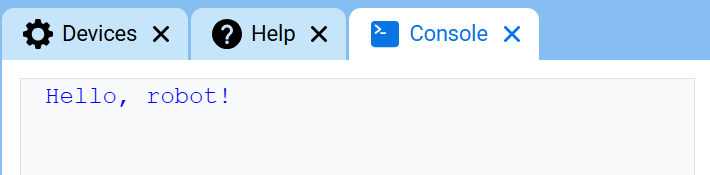
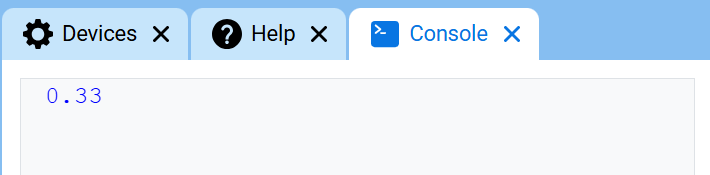
print നിലവിലെ കഴ്സർ സ്ഥാനം ഉപയോഗിച്ച് കൺസോളിൽ ടെക്സ്റ്റ്, നമ്പറുകൾ അല്ലെങ്കിൽ വേരിയബിൾ മൂല്യങ്ങൾ പ്രദർശിപ്പിക്കുന്നു.
നിങ്ങളുടെ പ്രോജക്റ്റിൽ നിന്നുള്ള മൂല്യങ്ങൾ ഉൾപ്പെടുത്താൻ ഒരു പ്രിന്റ് ചെയ്ത സന്ദേശം ആവശ്യമുണ്ടെങ്കിൽ, ഉദാഹരണത്തിന് ഒരു സ്കോർ, ടൈമർ അല്ലെങ്കിൽ സെൻസർ റീഡിംഗ് എന്നിവ ഉപയോഗിക്കുമ്പോൾ, ഇഷ്ടാനുസൃത സ്ട്രിംഗ് ഫോർമാറ്റിംഗ് ഉപയോഗിക്കുക. കൂടുതൽ വിവരങ്ങൾക്ക് സ്ട്രിംഗ് ഫോർമാറ്റിംഗ് പേജ് കാണുക.
അടുത്ത പ്രിന്റ് ചെയ്ത മൂല്യം ഒരു പുതിയ വരിയിൽ ആരംഭിക്കണമെങ്കിൽ new_line ഉപയോഗിക്കുക.
Usage:
console.print(value, precision)
പാരാമീറ്ററുകൾ |
വിവരണം |
|---|---|
|
കൺസോളിൽ പ്രദർശിപ്പിക്കേണ്ട വാചകം, നമ്പർ അല്ലെങ്കിൽ വേരിയബിൾ മൂല്യം. |
|
ഓപ്ഷണൽ. ഒരു സംഖ്യ പ്രിന്റ് ചെയ്യുമ്പോൾ പ്രദർശിപ്പിക്കേണ്ട ദശാംശസ്ഥാനങ്ങളുടെ എണ്ണം. ഡിഫോൾട്ട് |
def main():
    # Display a message in the Console
    console.print("Hello, robot!")

# Start threads — Do not delete
start_thread(main)
def main():
    # Display 1/3 with two decimals
    console.print(1 / 3, precision=2)

# Start threads — Do not delete
start_thread(main)
new_line#
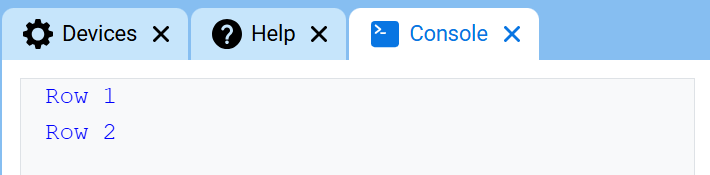
new_line കൺസോളിലെ അടുത്ത വരിയിലെ കോളം 1 ലേക്ക് കഴ്സർ നീക്കുന്നു. പ്രിന്റ് ചെയ്ത അടുത്ത മൂല്യം ആ വരിയിൽ ദൃശ്യമാകും.
അടുത്ത പ്രിന്റ് ചെയ്ത മൂല്യം ഒരു പുതിയ വരിയിൽ ആരംഭിക്കണമെങ്കിൽ ഈ രീതി ഉപയോഗിക്കുക.
Usage:
console.new_line()
പാരാമീറ്ററുകൾ |
വിവരണം |
|---|---|
ഈ രീതിക്ക് പാരാമീറ്ററുകൾ ഇല്ല. |
def main():
    # Print on two lines
    console.print("Row 1")
    console.new_line()
    console.print("Row 2")

# Start threads — Do not delete
start_thread(main)
clear#
clear കൺസോളിൽ നിന്ന് എല്ലാ വരികളും മായ്ക്കുന്നു.
Usage:
console.clear()
പാരാമീറ്ററുകൾ |
വിവരണം |
|---|---|
ഈ രീതിക്ക് പാരാമീറ്ററുകൾ ഇല്ല. |
def main():
    # Display text, then clear it after two seconds
    console.print("This will disappear...")
    wait(2, SECONDS)
    console.clear()

# Start threads — Do not delete
start_thread(main)
ഗെറ്റർ#
input#
input ഉപയോക്താവ് ഒരു പ്രതികരണം നൽകുന്നതിനായി കാത്തിരിക്കുന്നു, തുടർന്ന് ആ പ്രതികരണം വാചകമായി തിരികെ നൽകുന്നു.
കൺസോളിൽ ഒരു പ്രതികരണം നൽകുന്നതുവരെ പ്രോജക്റ്റ് input() ൽ താൽക്കാലികമായി നിർത്തുന്നു.
input() നൽകുന്ന മൂല്യം എല്ലായ്പ്പോഴും ടെക്സ്റ്റ് ആയിരിക്കും. പ്രതികരണം ഒരു സംഖ്യയായി ഉപയോഗിക്കുന്നതിന്, ആദ്യം അതിനെ int() അല്ലെങ്കിൽ float() ഉപയോഗിച്ച് പരിവർത്തനം ചെയ്യുക.
Usage:
input()
പാരാമീറ്ററുകൾ |
വിവരണം |
|---|---|
ഈ രീതിക്ക് പാരാമീറ്ററുകൾ ഇല്ല. |
# Ask for a name, then print a greeting
answer = input("What's your name?")
console.print("Hello, " + answer)
# Ask for a number, then use it in math
answer = input("Enter a number:")
number = float(answer)
console.print(number + 1)
മ്യൂട്ടേറ്റർ#
set_print_color#
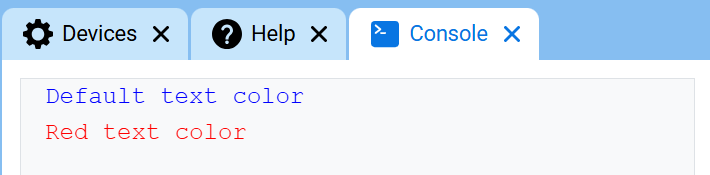
set_print_color ഈ രീതി ഉപയോഗിച്ചതിനുശേഷം കൺസോളിൽ പ്രിന്റ് ചെയ്യുന്ന വാചകത്തിന് ഉപയോഗിക്കുന്ന നിറം സജ്ജമാക്കുന്നു. ഒരു പ്രോജക്റ്റിന്റെ തുടക്കത്തിൽ, കൺസോൾ വാചക നിറം BLUE ആയി സജ്ജീകരിച്ചിരിക്കുന്നു.
Usage:
console.set_print_color(color)
പാരാമീറ്ററുകൾ |
വിവരണം |
|---|---|
|
കൺസോളിൽ പ്രിന്റ് ചെയ്തിരിക്കുന്ന വാചകത്തിന് ഉപയോഗിക്കേണ്ട നിറം:
|
def main():
    # Print text in different colors
    console.print("Default text color")
    console.new_line()
    console.set_print_color(RED)
    console.print("Red text color")

# Start threads — Do not delete
start_thread(main)
മോണിറ്റർ#
monitor_sensor#
monitor_sensor VEXcode-ലെ മോണിറ്റർ ടാബിലേക്ക് ഒന്നോ അതിലധികമോ സെൻസർ മൂല്യങ്ങൾ ചേർക്കുന്നു. ഒരു പ്രോജക്റ്റ് പ്രവർത്തിക്കുമ്പോൾ സെൻസർ മൂല്യങ്ങൾ മാറുന്നത് കാണാൻ ഇത് നിങ്ങളെ അനുവദിക്കുന്നു.
ഓരോ സെൻസർ മൂല്യവും ഒരു സ്ട്രിംഗായി നൽകുക.
Usage:
monitor_sensor(“sensor”)
monitor_sensor(“sensor1”, “sensor2”)
പാരാമീറ്ററുകൾ |
വിവരണം |
|---|---|
|
The sensor value to monitor, given as a string. To monitor more than one sensor value, separate each sensor value with a comma. Options include:
|
# Build Used: Super Code Base 2.0
def main():
    # Monitor the rotation in the Monitor tab
    monitor_sensor("drivetrain.get_rotation")
    drivetrain.turn_for(RIGHT, 450)

# Start threads — Do not delete
start_thread(main)
# Build Used: Super Code Base 2.0
def main():
    # Monitor the rotation and heading in the Monitor tab
    monitor_sensor("drivetrain.get_rotation", "drivetrain.get_heading")
    drivetrain.turn_for(RIGHT, 450)

# Start threads — Do not delete
start_thread(main)
monitor_variable#
monitor_variable VEXcode-ലെ മോണിറ്റർ ടാബിലേക്ക് ഒന്നോ അതിലധികമോ മുൻകൂട്ടി നിശ്ചയിച്ച വേരിയബിളുകൾ ചേർക്കുന്നു. ഒരു പ്രോജക്റ്റ് പ്രവർത്തിക്കുമ്പോൾ ഒരു വേരിയബിളിന്റെ മൂല്യം മാറുന്നത് കാണാൻ ഇത് നിങ്ങളെ അനുവദിക്കുന്നു.
monitor_variable വിജയകരമായി നിരീക്ഷിക്കുന്നതിന് വേരിയബിളുകൾ ഗ്ലോബൽ ആയിരിക്കണം. ഓരോ വേരിയബിൾ നാമവും ഒരു സ്ട്രിംഗായി നൽകുക.
Usage:
monitor_variable(“variable”)
monitor_variable(“variable1”, “variable2”)
പാരാമീറ്ററുകൾ |
വിവരണം |
|---|---|
|
നിരീക്ഷിക്കുന്നതിനായി മുൻകൂട്ടി നിശ്ചയിച്ച ഒരു ഗ്ലോബൽ വേരിയബിളിന്റെ പേര്, ഒരു സ്ട്രിംഗായി നൽകിയിരിക്കുന്നു. ഒന്നിലധികം വേരിയബിളുകൾ നിരീക്ഷിക്കാൻ, ഓരോ വേരിയബിൾ നാമവും കോമ ഉപയോഗിച്ച് വേർതിരിക്കുക. |
# Build Used: Super Code Base 2.0
def main():
    # Monitor the amount of loops
    global loops
    monitor_variable("loops")

    # Drive in a square 3 times
    for loops in range(12):
        drivetrain.turn_for(RIGHT, 90, DEGREES)
        drivetrain.drive_for(FORWARD, 150, MM)

# Start threads — Do not delete
start_thread(main)
actions = 0

# Build Used: Super Code Base 2.0
def main():
    # Monitor the amount of loops and actions
    global loops, actions
    monitor_variable("loops", "actions")

    # Drive in a square 3 times
    for loops in range(12):
        drivetrain.turn_for(RIGHT, 90, DEGREES)
        drivetrain.drive_for(FORWARD, 150, MM)
        actions = actions + 2

# Start threads — Do not delete
start_thread(main)