
คอนโซล#
การแนะนำ#
หน้าต่างคอนโซล VEXcode GO จะแสดงอยู่ในแท็บ Console ภายใน VEXcode เมธอดของคอนโซลสามารถแสดงข้อความ ตัวเลข และค่าตัวแปรขณะที่โปรเจกต์กำลังทำงานอยู่ นอกจากนี้ยังสามารถย้ายเคอร์เซอร์ของคอนโซลไปยังแถวใหม่ ล้างคอนโซล อ่านข้อมูลที่ผู้ใช้ป้อน ตั้งค่าสีของข้อความที่พิมพ์หลังจากเปลี่ยนสี และตรวจสอบค่าตัวแปรหรือค่าเซ็นเซอร์ในแท็บ Monitor ของ VEXcode ได้อีกด้วย
ด้านล่างนี้คือรายการวิธีการทั้งหมด:
การดำเนินการ — แสดงข้อความหรือล้างคอนโซล
print— แสดงข้อความ ตัวเลข หรือค่าตัวแปรในคอนโซลnew_line— ย้ายเคอร์เซอร์ของคอนโซลไปที่ต้นบรรทัดถัดไปclear— ล้างแถวทั้งหมดในคอนโซล
Getter — อ่านข้อมูลที่ผู้ใช้ป้อน
input— รอรับอินพุตจากผู้ใช้และส่งคืนการตอบกลับเป็นข้อความ
ตัวปรับแต่ง — จัดรูปแบบข้อความที่พิมพ์
set_print_color— ตั้งค่าสีที่ใช้สำหรับข้อความที่พิมพ์ในคอนโซล
มอนิเตอร์ — ตรวจสอบค่าของเซ็นเซอร์หรือตัวแปรระหว่างการทำงานของโปรเจ็กต์ในแท็บมอนิเตอร์ของ VEXcode
monitor_sensor— เพิ่มค่าเซ็นเซอร์อย่างน้อยหนึ่งค่าลงในแท็บ Monitormonitor_variable— เพิ่มตัวแปรที่กำหนดไว้ล่วงหน้าอย่างน้อยหนึ่งตัวลงในแท็บ Monitor
การกระทำ#
print#
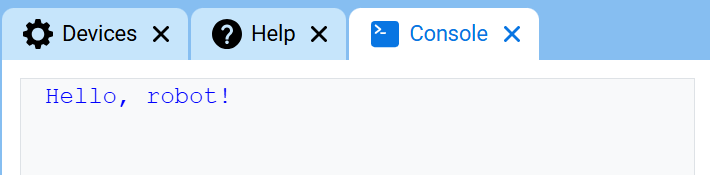
คำสั่ง print จะแสดงข้อความ ตัวเลข หรือค่าตัวแปรในคอนโซลโดยใช้ตำแหน่งเคอร์เซอร์ปัจจุบัน
ใช้การจัดรูปแบบสตริงแบบกำหนดเองเมื่อคุณต้องการให้ข้อความที่พิมพ์มีค่าจากโปรเจกต์ของคุณ เช่น คะแนน ตัวจับเวลา หรือค่าที่อ่านได้จากเซ็นเซอร์ ดูข้อมูลเพิ่มเติมได้ที่หน้า การจัดรูปแบบสตริง
ใช้ new_line เมื่อคุณต้องการให้ค่าที่พิมพ์ถัดไปเริ่มต้นในแถวใหม่
Usage:
console.print(value, precision)
พารามิเตอร์ |
คำอธิบาย |
|---|---|
|
ข้อความ ตัวเลข หรือค่าตัวแปรที่จะแสดงในคอนโซล |
|
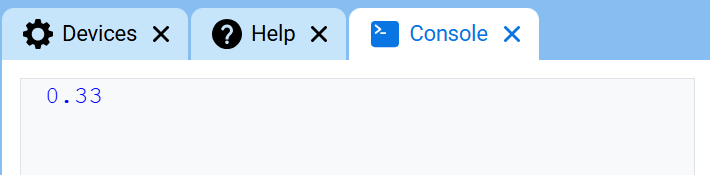
ตัวเลือกเสริม จำนวนตำแหน่งทศนิยมที่จะแสดงเมื่อพิมพ์ตัวเลข ค่าเริ่มต้นคือ |
def main():
    # Display a message in the Console
    console.print("Hello, robot!")

# Start threads — Do not delete
start_thread(main)
def main():
    # Display 1/3 with two decimals
    console.print(1 / 3, precision=2)

# Start threads — Do not delete
start_thread(main)
new_line#
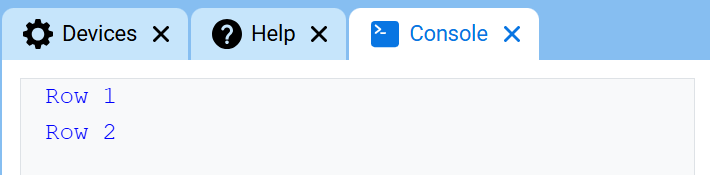
new_line จะย้ายเคอร์เซอร์ไปยังคอลัมน์ที่ 1 ในแถวถัดไปในคอนโซล ค่าที่พิมพ์ถัดไปจะปรากฏในแถวนั้น
ใช้วิธีนี้เมื่อคุณต้องการให้ค่าที่พิมพ์ถัดไปเริ่มต้นในแถวใหม่
Usage:
console.new_line()
พารามิเตอร์ |
คำอธิบาย |
|---|---|
เมธอดนี้ไม่มีพารามิเตอร์ |
def main():
    # Print on two lines
    console.print("Row 1")
    console.new_line()
    console.print("Row 2")

# Start threads — Do not delete
start_thread(main)
clear#
clear จะล้างข้อมูลทุกแถวออกจากคอนโซล
Usage:
console.clear()
พารามิเตอร์ |
คำอธิบาย |
|---|---|
เมธอดนี้ไม่มีพารามิเตอร์ |
def main():
    # Display text, then clear it after two seconds
    console.print("This will disappear...")
    wait(2, SECONDS)
    console.clear()

# Start threads — Do not delete
start_thread(main)
เกตเตอร์#
input#
input รอให้ผู้ใช้ป้อนคำตอบ จากนั้นส่งคำตอบนั้นกลับมาเป็นข้อความ
โปรเจ็กต์จะหยุดที่ input() จนกว่าจะมีการป้อนคำตอบในคอนโซล
ค่าที่ส่งคืนโดย input() จะเป็นข้อความเสมอ หากต้องการใช้ค่าที่ส่งคืนเป็นตัวเลข ให้แปลงค่าก่อนด้วย int() หรือ float()
Usage:
input()
พารามิเตอร์ |
คำอธิบาย |
|---|---|
เมธอดนี้ไม่มีพารามิเตอร์ |
# Ask for a name, then print a greeting
answer = input("What's your name?")
console.print("Hello, " + answer)
# Ask for a number, then use it in math
answer = input("Enter a number:")
number = float(answer)
console.print(number + 1)
มิวเทเตอร์#
set_print_color#
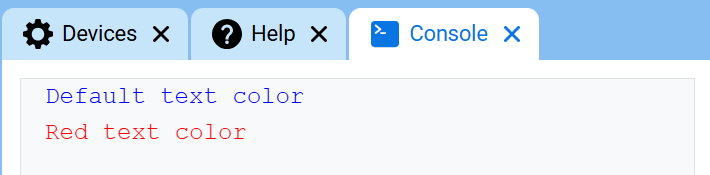
set_print_color กำหนดสีที่ใช้สำหรับข้อความที่พิมพ์ในคอนโซลหลังจากใช้วิธีนี้ ในตอนเริ่มต้นของโปรเจกต์ สีข้อความในคอนโซลจะถูกตั้งค่าเป็น BLUE
Usage:
console.set_print_color(color)
พารามิเตอร์ |
คำอธิบาย |
|---|---|
|
สีที่ใช้สำหรับข้อความที่พิมพ์ในคอนโซล:
|
def main():
    # Print text in different colors
    console.print("Default text color")
    console.new_line()
    console.set_print_color(RED)
    console.print("Red text color")

# Start threads — Do not delete
start_thread(main)
เฝ้าสังเกต#
monitor_sensor#
monitor_sensor เพิ่มค่าเซ็นเซอร์อย่างน้อยหนึ่งค่าลงในแท็บ Monitor ใน VEXcode ซึ่งช่วยให้คุณสามารถดูการเปลี่ยนแปลงของค่าเซ็นเซอร์ขณะที่โปรเจ็กต์กำลังทำงานอยู่
ระบุค่าเซ็นเซอร์แต่ละค่าเป็นสตริง
Usage:
monitor_sensor(“sensor”)
monitor_sensor(“sensor1”, “sensor2”)
พารามิเตอร์ |
คำอธิบาย |
|---|---|
|
The sensor value to monitor, given as a string. To monitor more than one sensor value, separate each sensor value with a comma. Options include:
|
# Build Used: Super Code Base 2.0
def main():
    # Monitor the rotation in the Monitor tab
    monitor_sensor("drivetrain.get_rotation")
    drivetrain.turn_for(RIGHT, 450)

# Start threads — Do not delete
start_thread(main)
# Build Used: Super Code Base 2.0
def main():
    # Monitor the rotation and heading in the Monitor tab
    monitor_sensor("drivetrain.get_rotation", "drivetrain.get_heading")
    drivetrain.turn_for(RIGHT, 450)

# Start threads — Do not delete
start_thread(main)
monitor_variable#
monitor_variable เพิ่มตัวแปรที่กำหนดไว้ล่วงหน้าอย่างน้อยหนึ่งตัวลงในแท็บ Monitor ใน VEXcode ซึ่งช่วยให้คุณสามารถตรวจสอบการเปลี่ยนแปลงค่าของตัวแปรขณะที่โปรเจกต์กำลังทำงานอยู่
ตัวแปรต้องเป็น monitor_variable เพื่อให้สามารถตรวจสอบตัวแปรเหล่านั้นได้อย่างสำเร็จ ระบุชื่อตัวแปรแต่ละตัวเป็นสตริง
Usage:
monitor_variable(“variable”)
monitor_variable(“variable1”, “variable2”)
พารามิเตอร์ |
คำอธิบาย |
|---|---|
|
ชื่อของตัวแปรส่วนกลางที่กำหนดไว้ล่วงหน้าซึ่งต้องการตรวจสอบ โดยระบุเป็นสตริง หากต้องการตรวจสอบตัวแปรมากกว่าหนึ่งตัว ให้คั่นชื่อตัวแปรแต่ละตัวด้วยเครื่องหมายจุลภาค |
# Build Used: Super Code Base 2.0
def main():
    # Monitor the amount of loops
    global loops
    monitor_variable("loops")

    # Drive in a square 3 times
    for loops in range(12):
        drivetrain.turn_for(RIGHT, 90, DEGREES)
        drivetrain.drive_for(FORWARD, 150, MM)

# Start threads — Do not delete
start_thread(main)
actions = 0

# Build Used: Super Code Base 2.0
def main():
    # Monitor the amount of loops and actions
    global loops, actions
    monitor_variable("loops", "actions")

    # Drive in a square 3 times
    for loops in range(12):
        drivetrain.turn_for(RIGHT, 90, DEGREES)
        drivetrain.drive_for(FORWARD, 150, MM)
        actions = actions + 2

# Start threads — Do not delete
start_thread(main)