
화면#
소개#
화면 관련 메서드는 VEX AIR 드론 컨트롤러 화면에 텍스트, 숫자, 그래픽 및 이미지를 표시하는 방식과 화면 터치에 반응하는 방식을 제어합니다.
다음은 사용 가능한 방법 목록입니다.
커서 인쇄 – 텍스트를 표시하고 인쇄 커서를 관리합니다.
print– 현재 커서 위치에 텍스트, 숫자 또는 변수 값을 출력합니다.set_cursor– 커서를 특정 행과 열로 이동합니다.next_row– 커서를 다음 행의 1열로 이동합니다.clear_row– 텍스트 행을 지웁니다.get_row– 텍스트가 출력될 행을 반환합니다.get_column– 텍스트가 출력될 열을 반환합니다.
XY 인쇄 – 픽셀 기반 좌표에 텍스트를 인쇄합니다.
print_at– 특정 x 및 y 좌표에 텍스트, 숫자 또는 변수 값을 출력합니다.set_origin– 좌표 기반 인쇄 및 그리기에 사용되는 원점을 설정합니다.
뮤테이터 – 화면 설정, 색상 및 그리기 동작을 변경합니다.
clear_screen– 컨트롤러 화면에서 모든 그림, 텍스트 및 이미지를 지웁니다.wait_for_render– 화면 그리기를 나중에 렌더링하는 동작으로 전환합니다.set_font– 인쇄된 텍스트에 대한 글꼴을 설정합니다.set_pen_width– 그려진 선과 도형 윤곽선의 두께를 설정합니다.set_pen_color– 텍스트, 픽셀, 선 및 도형 윤곽선의 색상을 설정합니다.set_text_fill_color– 인쇄된 텍스트 뒤의 채우기 색상을 설정합니다.set_fill_color– 그려진 도형의 채우기 색상을 설정합니다.
그리기 - 화면에 그래픽과 이미지를 추가합니다.
draw_pixel– 특정 x 및 y 위치에 픽셀 하나를 그립니다.draw_line– 두 점 사이에 선을 그립니다.draw_rectangle– 현재 펜과 채우기 색상을 사용하여 사각형을 그립니다.draw_circle– 현재 펜과 채우기 색상을 사용하여 원을 그립니다.show_file– 업로드된 이미지를 그립니다.
터치 – 화면 터치를 감지하고 반응합니다.
pressing누르기 – 현재 화면이 눌러지고 있는지 여부를 반환합니다.x_position– 마지막 화면 누름의 x좌표를 반환합니다.y_position– 마지막 화면 누름의 y좌표를 반환합니다.
콜백 함수 – 화면을 누르거나 놓았을 때 실행되는 함수입니다.
커서 인쇄#
print#
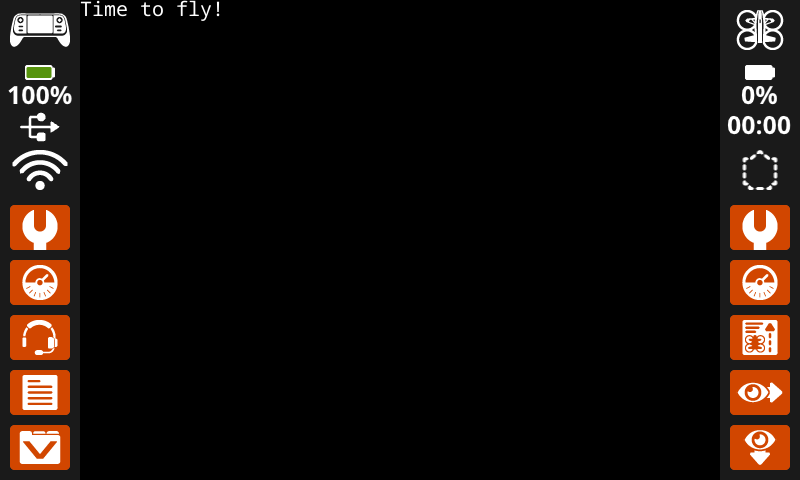
print 은 현재 커서 위치 및 글꼴에 있는 컨트롤러 화면에 텍스트, 숫자 또는 변수 값을 출력합니다.
Usage:
controller.screen.print(text)
매개변수 |
설명 |
|---|---|
|
화면에 출력할 텍스트, 숫자 또는 변수 값입니다. |
|
선택 사항입니다. 출력되는 텍스트 사이의 구분자입니다. 기본값은 |
|
선택 사항입니다. 마지막으로 출력된 텍스트 뒤에 추가되는 문자열입니다. 기본값은 |
|
선택 사항입니다. 부동 소수점 값을 정수로 출력할 때 소수점 이하 자릿수를 지정합니다. 기본값은 정밀도 |
# Display a message at the starting cursor position.
controller.screen.print("Time to fly!")
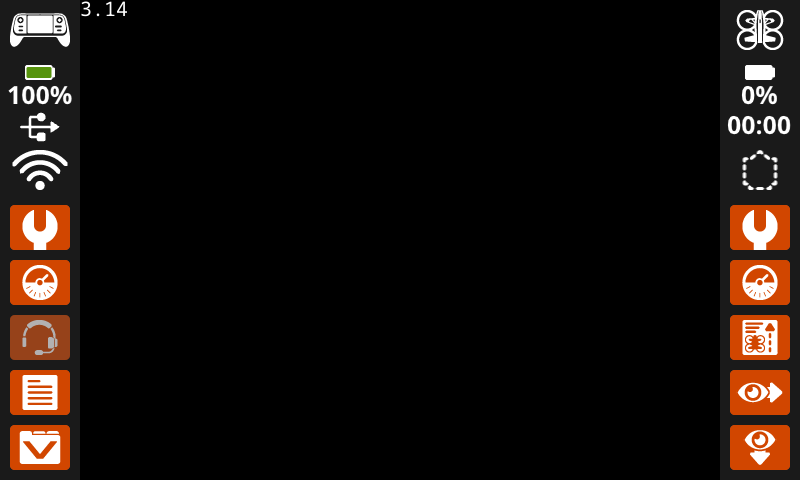
# Display the first 2 decimals of pi
controller.screen.print(3.1415, precision = 2)
set_cursor#
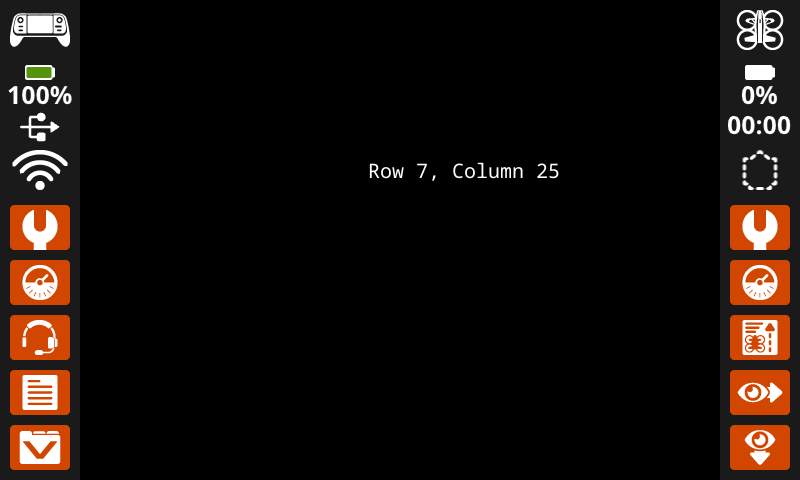
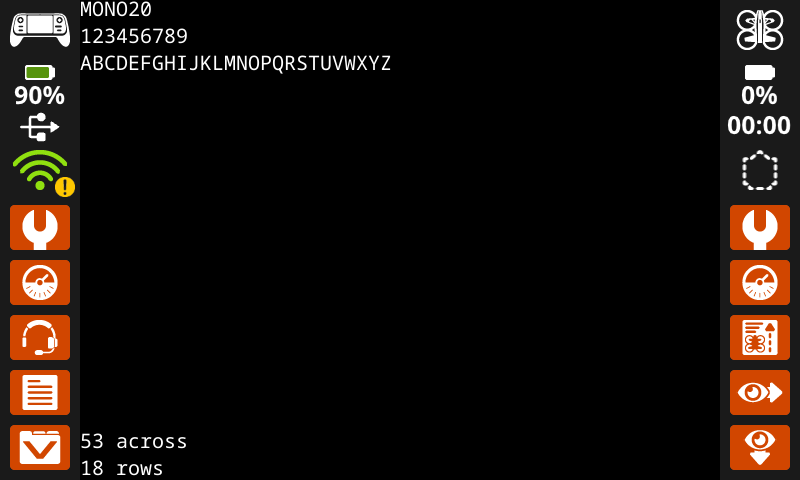
set_cursor 컨트롤러 화면의 특정 행과 열로 커서를 이동합니다. 다음 print 호출은 해당 위치에서 인쇄를 시작합니다. 행과 열 간격은 선택한 글꼴을 고려합니다. 기본 고정폭 중간 글꼴을 사용하는 경우 화면에 최대 18행 53열까지 명확하게 표시할 수 있습니다. 이 범위를 벗어난 텍스트는 잘리거나 읽기 어려울 수 있습니다.
Usage:
controller.screen.set_cursor(row, col)
매개변수 |
설명 |
|---|---|
|
커서를 이동할 행입니다. |
|
커서를 이동할 열입니다. |
# Display text starting at Row 7 Column 25.
controller.screen.set_cursor(row=7, col=25)
controller.screen.print("Row 7, Column 25")
next_row#
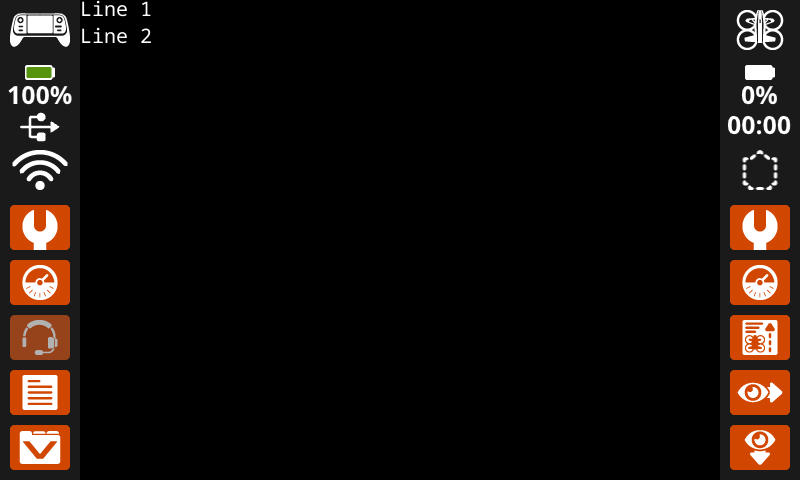
next_row 컨트롤러 화면의 다음 행의 1번째 열로 커서를 이동합니다.
Usage:
controller.screen.next_row()
매개변수 |
설명 |
|---|---|
이 메서드에는 매개변수가 없습니다. |
# Display two lines of text.
controller.screen.print("Line 1")
controller.screen.next_row()
controller.screen.print("Line 2")
clear_row#
clear_row 컨트롤러 화면에서 텍스트 행을 지웁니다.
Usage:
controller.screen.clear_row(row, color)
매개변수 |
설명 |
|---|---|
|
선택 사항입니다. 지울 행을 지정합니다. 기본값은 현재 커서가 있는 행입니다. |
|
선택 사항입니다. 지워진 행에 적용할 색상입니다. 색상이 지정되지 않은 경우
|
# Clear only the second row of text
controller.screen.print("This text stays")
controller.screen.next_row()
controller.screen.print("This text disappears")
wait(3, SECONDS)
controller.screen.clear_row(2)
# Turn the 5th row green.
controller.screen.clear_row(5, GREEN)
get_row#
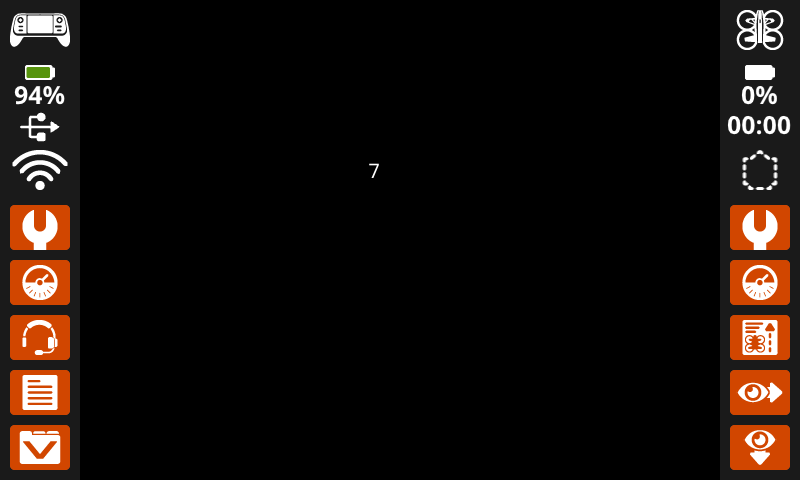
get_row 텍스트가 출력될 현재 행을 정수로 반환합니다.
Usage:
controller.screen.get_row()
매개변수 |
설명 |
|---|---|
이 메서드에는 매개변수가 없습니다. |
# Display the cursor's current row.
controller.screen.set_cursor(row=7, col=25)
controller.screen.print(controller.screen.get_row())
get_column#
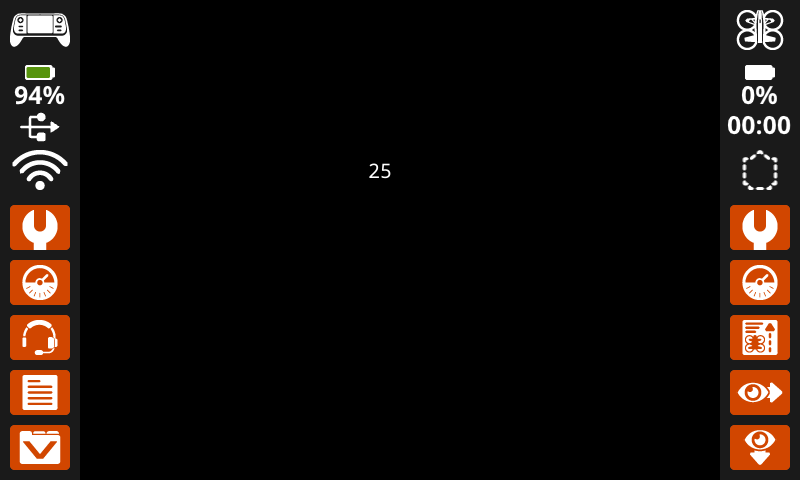
get_column 텍스트가 출력될 현재 열을 정수로 반환합니다.
Usage:
controller.screen.get_column()
매개변수 |
설명 |
|---|---|
이 메서드에는 매개변수가 없습니다. |
# Display the cursor's current column.
controller.screen.set_cursor(row=7, col=25)
controller.screen.print(controller.screen.get_column())
XY 프린트#
print_at#
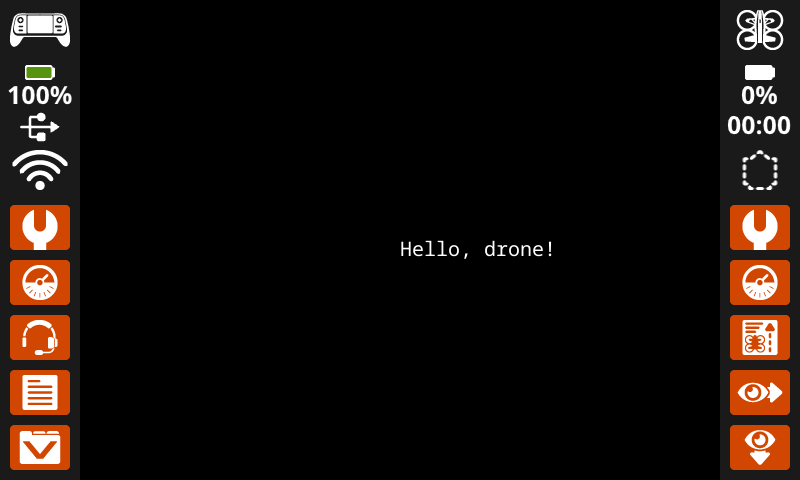
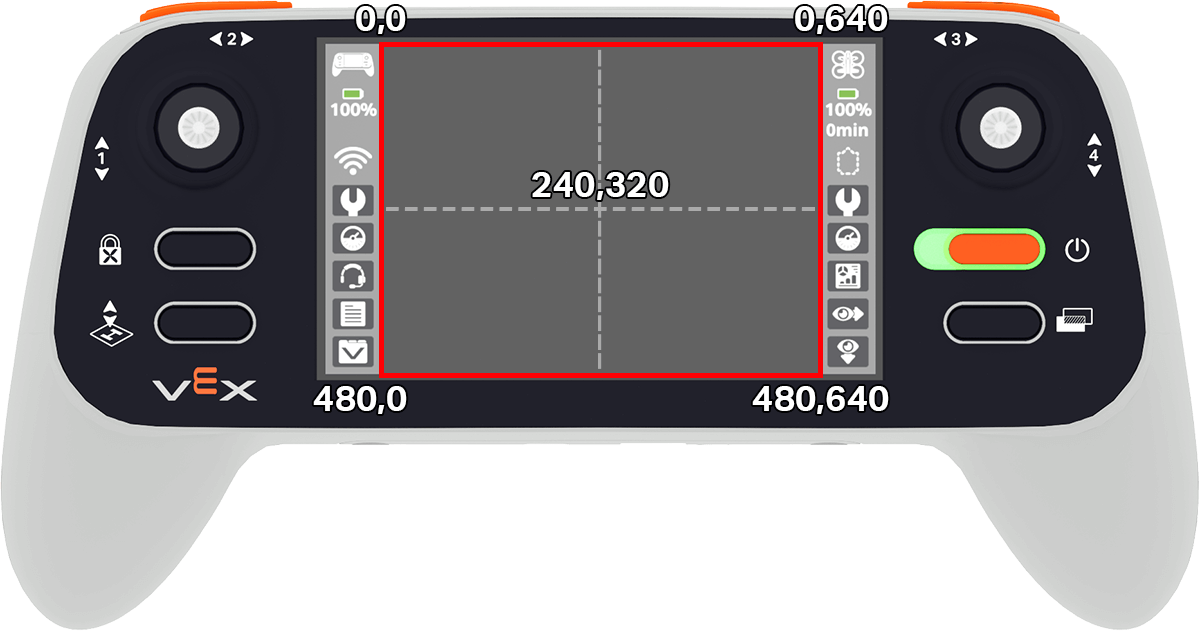
print_at 은 현재 font 및 origin을 사용하여 컨트롤러 화면의 특정 (x, y) 위치(픽셀)에 텍스트, 숫자 또는 변수 값을 출력합니다. x 텍스트가 왼쪽에서 시작하는 거리를 설정하고, y 글자의 아래쪽 위치를 설정합니다. 이 메서드는 현재 커서 위치를 무시합니다.
Usage:
controller.screen.print_at(text, x, y)
매개변수 |
설명 |
|---|---|
|
화면에 출력할 텍스트, 숫자 또는 변수 값입니다. |
|
텍스트의 가로 위치를 0에서 640픽셀 사이의 정수로 지정합니다. 0은 왼쪽, 640은 오른쪽입니다. |
|
텍스트의 세로 위치를 0에서 480픽셀 사이의 정수로 지정합니다. 0은 맨 위, 480은 맨 아래를 나타냅니다. |
# Display a message in the middle of the screen.
controller.screen.print_at("Hello, drone!", x=320, y=240)
set_origin#
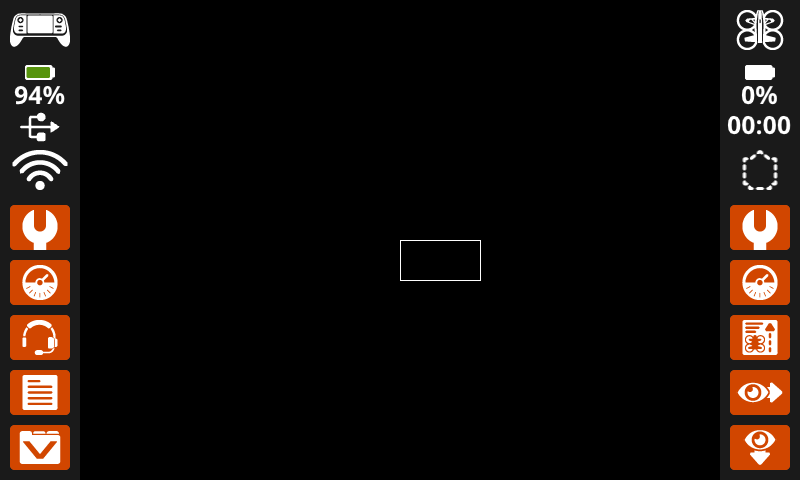
set_origin 은 컨트롤러 화면에서 그리기 및 좌표 기반 인쇄에 사용되는 원점(0, 0)을 설정합니다. 기본적으로 원점은 화면의 왼쪽 상단 모서리입니다. 이 메서드를 사용하면 원점을 다른 (x, y) 화면 좌표 위치로 재설정할 수 있습니다.
Usage:
controller.screen.set_origin(x, y)
매개변수 |
설명 |
|---|---|
|
원점으로 설정할 새로운 x 좌표는 0에서 640 사이의 정수로 주어집니다. |
|
원점으로 설정할 새로운 y 좌표는 0에서 480 사이의 정수입니다. |
# Set the origin to the center of the screen.
controller.screen.set_origin(x=320, y=240)

# Draw a rectangle at the new origin.
controller.screen.draw_rectangle(x=0, y=0, width=80, height=40)
돌연변이체#
clear_screen#
clear_screen 컨트롤러 화면에서 모든 그림, 텍스트 및 이미지를 지웁니다.
Usage:
controller.screen.clear_screen(row, col, color)
매개변수 |
설명 |
|---|---|
|
선택 사항입니다. 화면을 지운 후 커서를 이동할 행입니다. 기본값은 1입니다. |
|
선택 사항입니다. 화면을 지운 후 커서를 이동할 열입니다. 기본값은 1입니다. |
|
선택 사항입니다. 화면 색상을 설정합니다.
|
# Draw a circle, and clear it after 2 seconds.
controller.screen.draw_circle(x=320, y=240, radius=80)
wait(2, SECONDS)
controller.screen.clear_screen()
# Print two messages in the same spot
controller.screen.print("Hello!")
wait(3,SECONDS)
controller.screen.clear_screen(row=1, col=1)
controller.screen.print("Goodbye!")
# Set the background color of the screen to red.
controller.screen.clear_screen(color=RED)
wait_for_render#
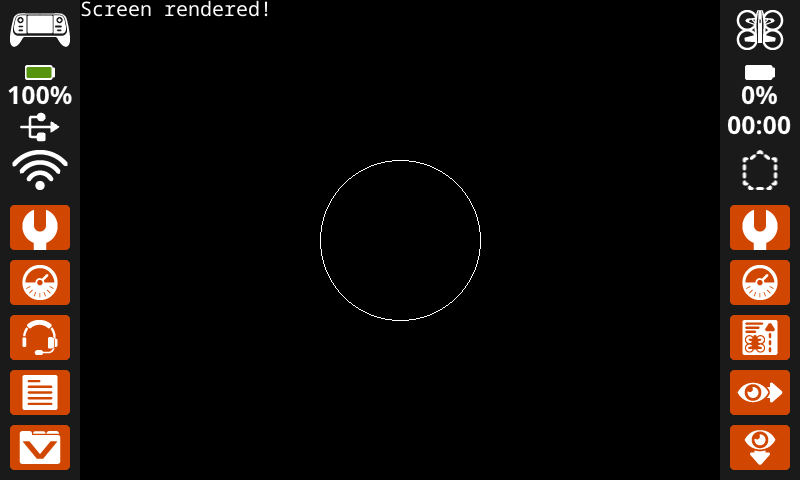
wait_for_render 화면 그리기 방식을 나중에 렌더링하는 동작으로 전환합니다. 이 메서드가 실행된 후에는 다음 wait_for_render 메서드가 실행될 때까지 이후의 화면 명령이 컨트롤러 화면에 나타나지 않습니다.
참고: 텍스트, 도형 또는 이미지 그룹을 그리기 전에 이 기능을 사용하고, 전체 업데이트를 한 번에 렌더링하려면 다시 사용하세요.
Usage:
controller.screen.wait_for_render()
매개변수 |
설명 |
|---|---|
이 메서드에는 매개변수가 없습니다. |
# Display text and images when button 7 is pressed.
controller.screen.wait_for_render()
controller.screen.print("Screen rendered!")
controller.screen.draw_circle(x=320, y=240, radius=80)
while not controller.button7.pressing():
    wait(5, MSEC)
controller.screen.wait_for_render()
set_font#
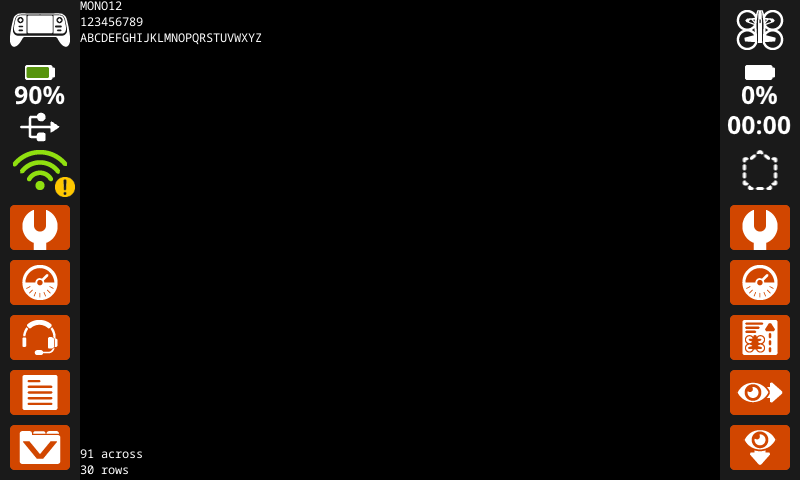
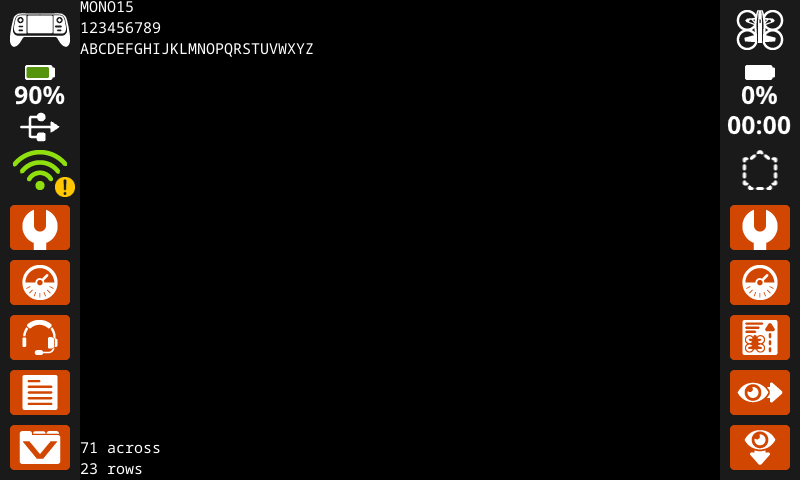
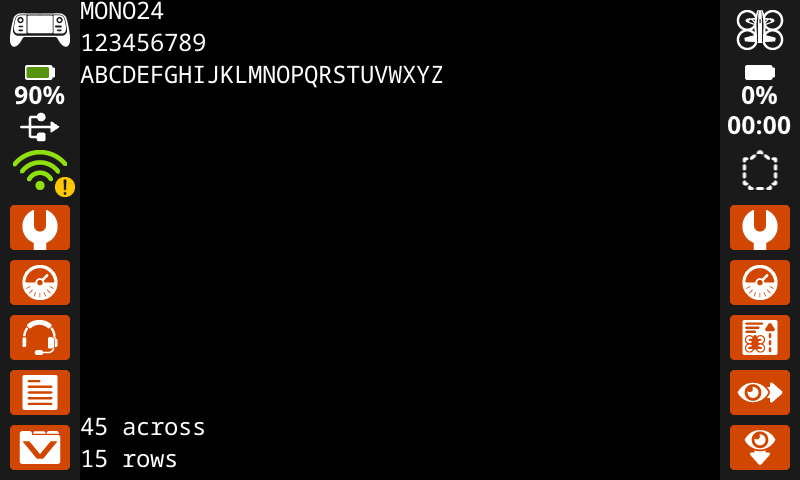
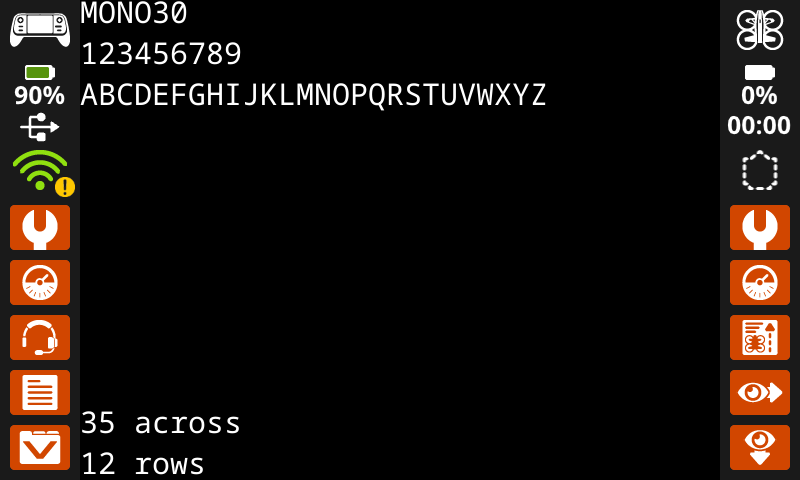
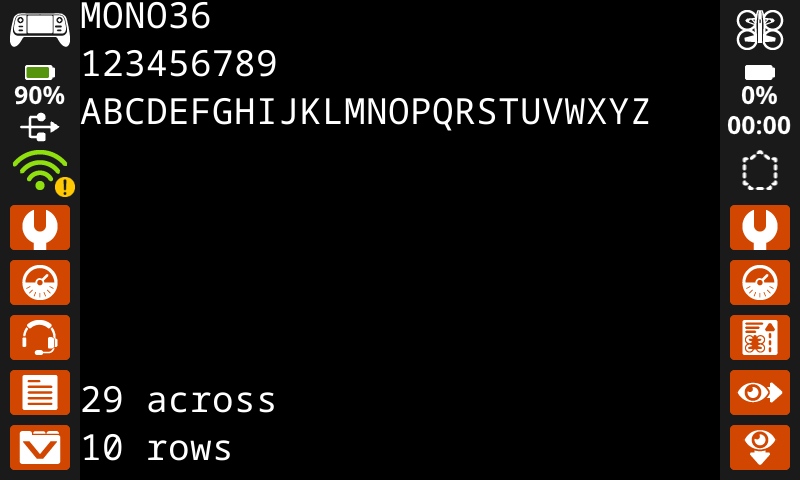
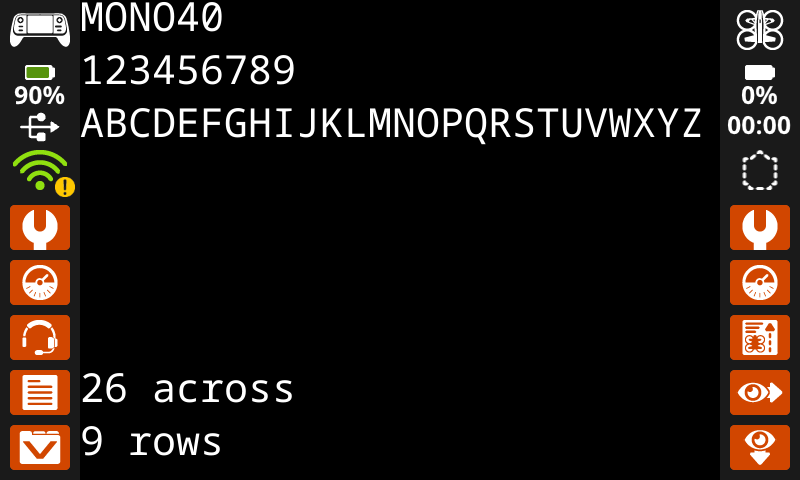
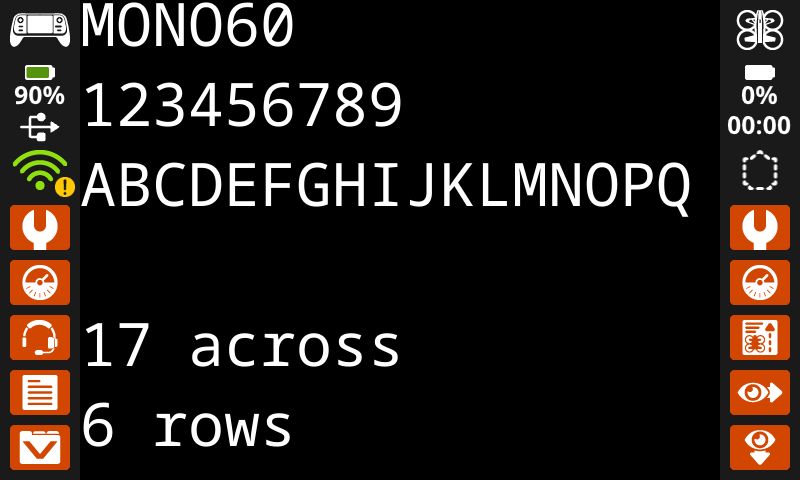
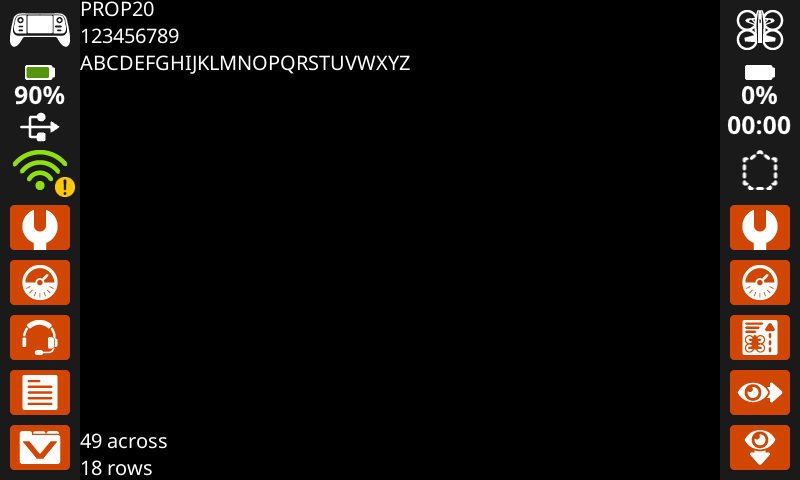
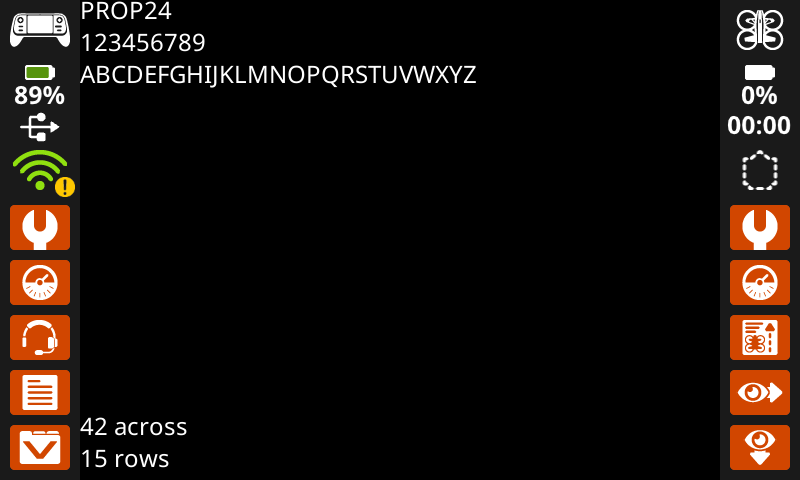
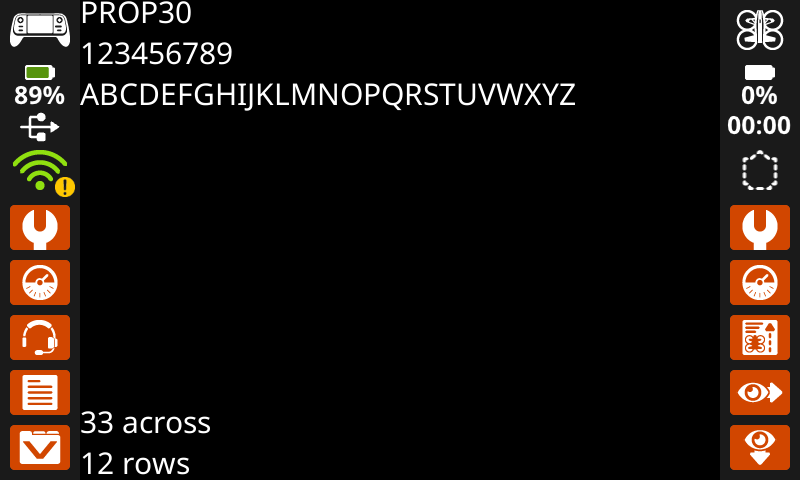
set_font 컨트롤러 화면에 텍스트를 표시하는 데 사용되는 글꼴을 설정합니다. 이 글꼴은 이 메서드가 실행된 후 출력되는 모든 텍스트에 적용됩니다. 프로젝트 시작 시 기본 글꼴은 MONO20 입니다.
Usage:
controller.screen.set_font(fontname)
매개변수 |
설명 |
|---|---|
|
Sets the font to one of the following:
|
|
|
|
|---|---|---|
|
|
|
|
|
|
|
|
|
|
|
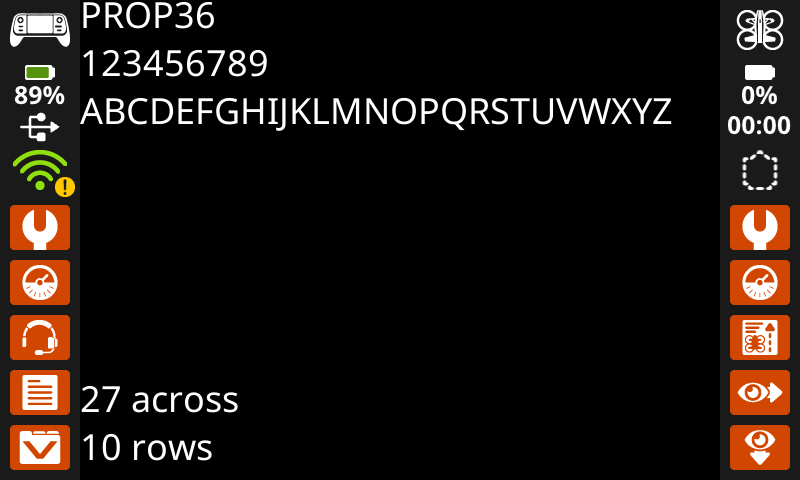
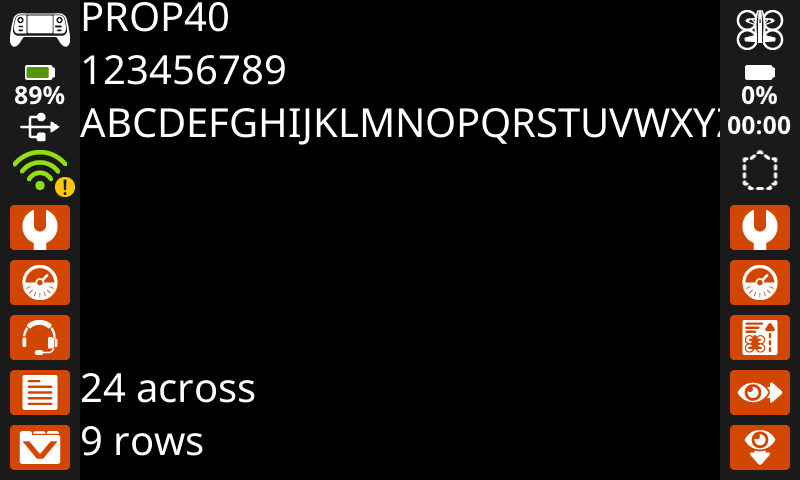
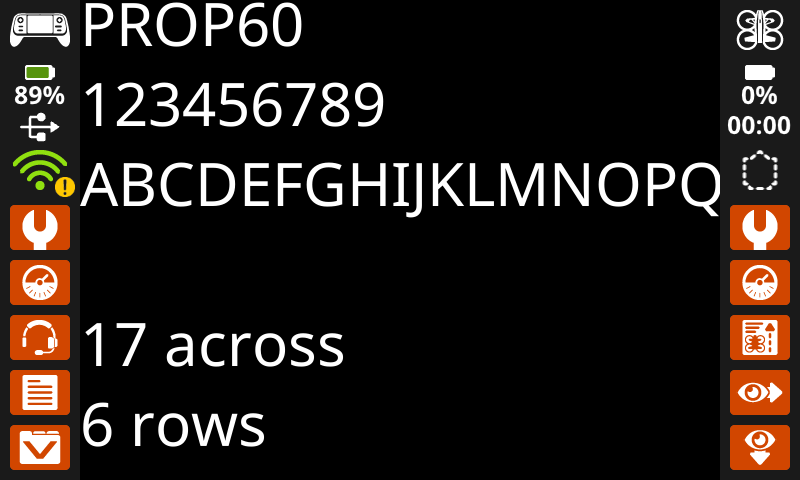
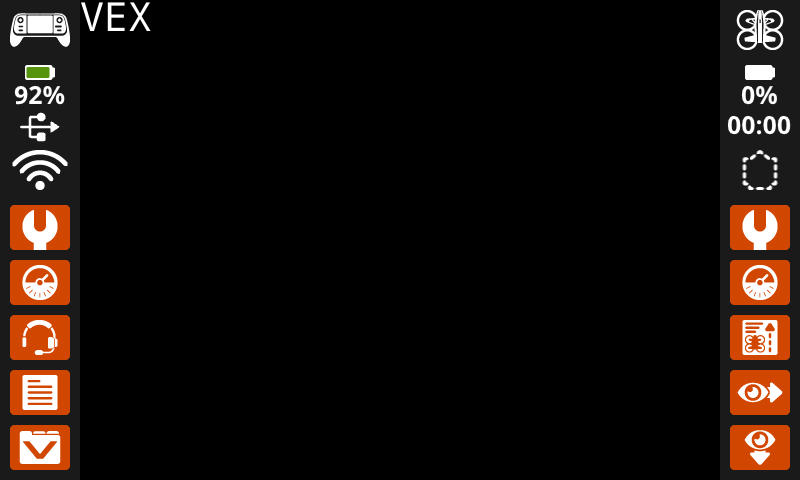
# Display text using a larger font.
controller.screen.set_font(MONO40)
controller.screen.print("VEX")
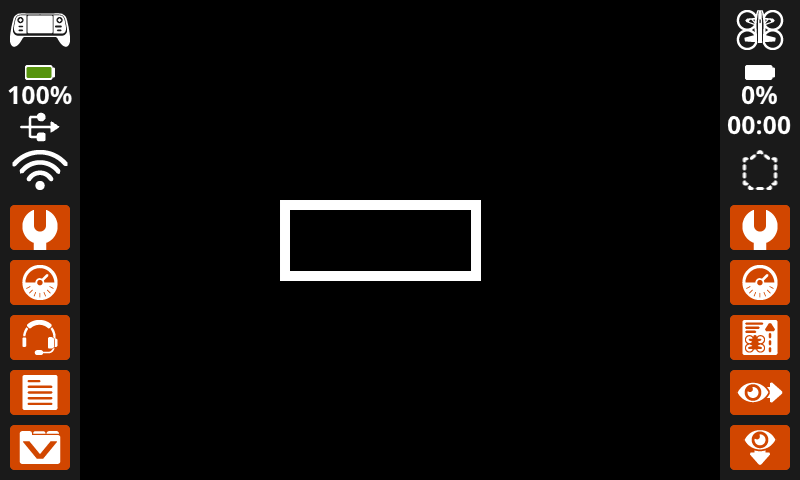
set_pen_width#
set_pen_width 그려진 선과 도형 윤곽선의 두께를 설정합니다.
Usage:
controller.screen.set_pen_width(width)
매개변수 |
설명 |
|---|---|
|
펜 너비는 픽셀 단위의 정수로 주어집니다. |
# Draw a rectangle with a pen width of 10.
controller.screen.set_pen_width(10)
controller.screen.draw_rectangle(x=200, y=200, width=200, height=80)
set_pen_color#
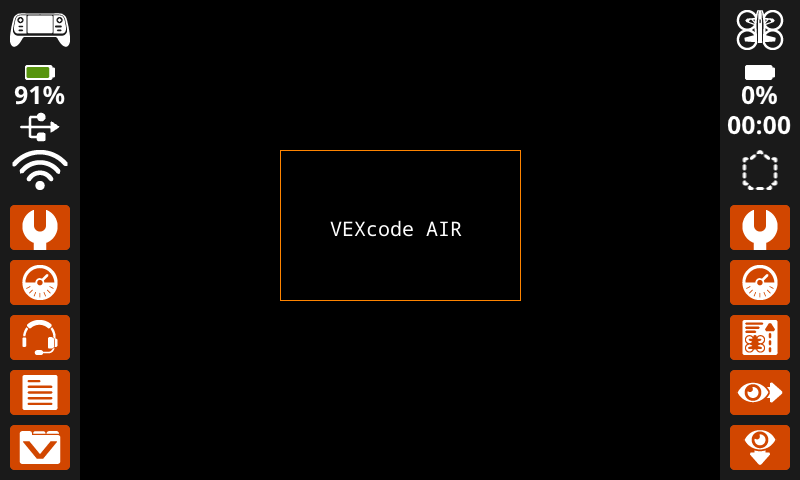
set_pen_color 텍스트, 픽셀, 선 및 도형 윤곽선의 색상을 설정합니다.
Usage:
controller.screen.set_pen_color(color)
매개변수 |
설명 |
|---|---|
|
선택 사항입니다. 펜과 글꼴 색상을 설정합니다. 옵션은 다음과 같습니다.
|
# Draw a rectangle with an orange outline.
controller.screen.set_pen_color(ORANGE)
controller.screen.draw_rectangle(x=200, y=150, width=240, height=150)
controller.screen.set_pen_color(WHITE)
controller.screen.print_at("VEXcode AIR", x=250, y=220)
set_text_fill_color#
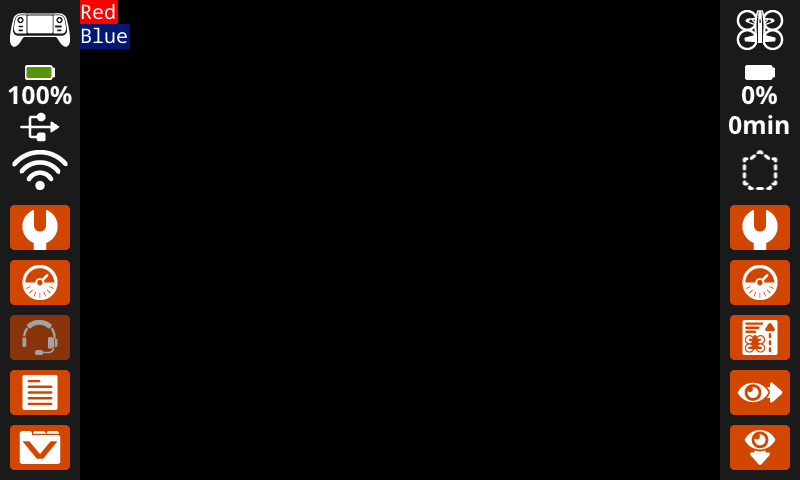
set_text_fill_color 인쇄된 텍스트 뒤의 채우기 색상을 설정합니다. 기본 텍스트 채우기 색상은 투명입니다.
Usage:
controller.screen.set_text_fill_color(color)
매개변수 |
설명 |
|---|---|
|
선택 사항입니다. 텍스트 채우기 색상을 설정합니다. 옵션은 다음과 같습니다.
|
# Display two colors behind text
controller.screen.set_text_fill_color(RED)
controller.screen.print("Red")
controller.screen.next_row()
controller.screen.set_text_fill_color(BLUE)
controller.screen.print("Blue")
set_fill_color#
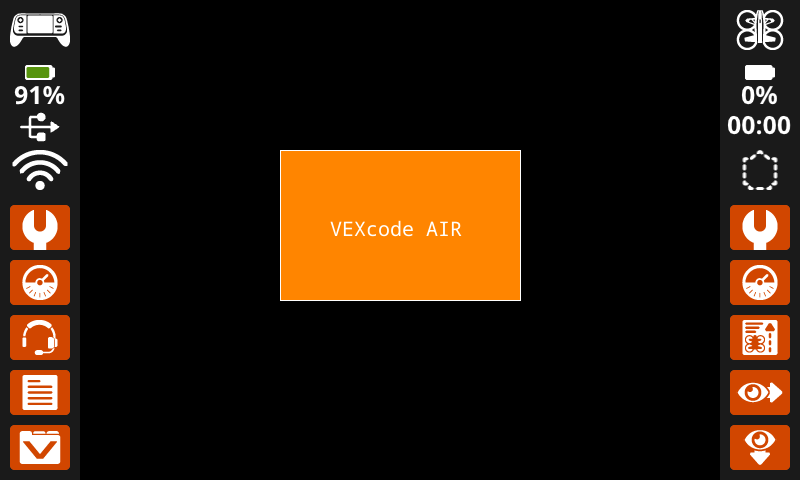
set_fill_color 도형을 그릴 때 사용되는 채우기 색상을 설정합니다. 기본 채우기 색상은 검정색입니다.
Usage:
controller.screen.set_fill_color(color)
매개변수 |
설명 |
|---|---|
|
선택 사항입니다. 채우기 색상을 설정합니다. 옵션은 다음과 같습니다.
|
# Draw an orange-filled rectangle with text on top
controller.screen.set_fill_color(ORANGE)
controller.screen.draw_rectangle(x=200, y=150, width=250, height=150)
controller.screen.print_at("VEXcode AIR", x=250, y=220)
그리다#
draw_pixel#
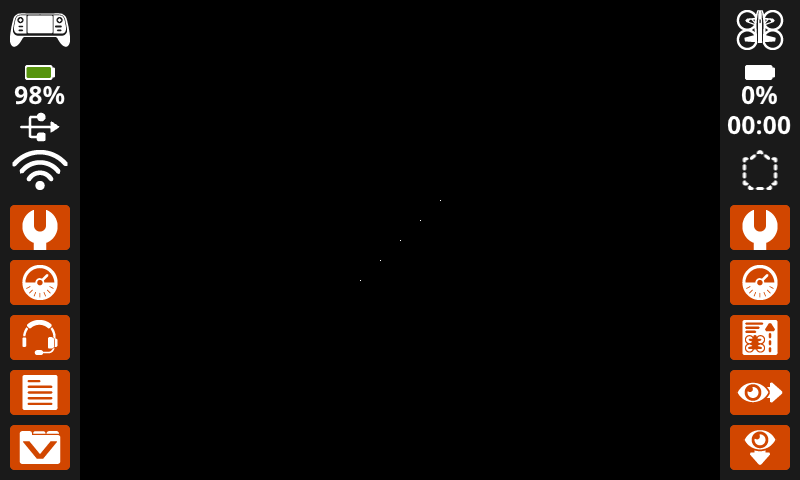
draw_pixel 현재 펜 색상을 사용하여 선택된 x 및 y 좌표에 픽셀 하나를 그립니다.
Usage:
controller.screen.draw_pixel(x, y)
매개변수 |
설명 |
|---|---|
|
픽셀이 그려질 x 좌표이며, 0에서 640 사이의 정수로 주어집니다. |
|
픽셀이 그려질 y 좌표이며, 0에서 480 사이의 정수로 주어집니다. |
# Draw five pixels in a diagonal.
controller.screen.draw_pixel(x=360, y=200)
controller.screen.draw_pixel(x=340, y=220)
controller.screen.draw_pixel(x=320, y=240)
controller.screen.draw_pixel(x=300, y=260)
controller.screen.draw_pixel(x=280, y=280)
draw_line#
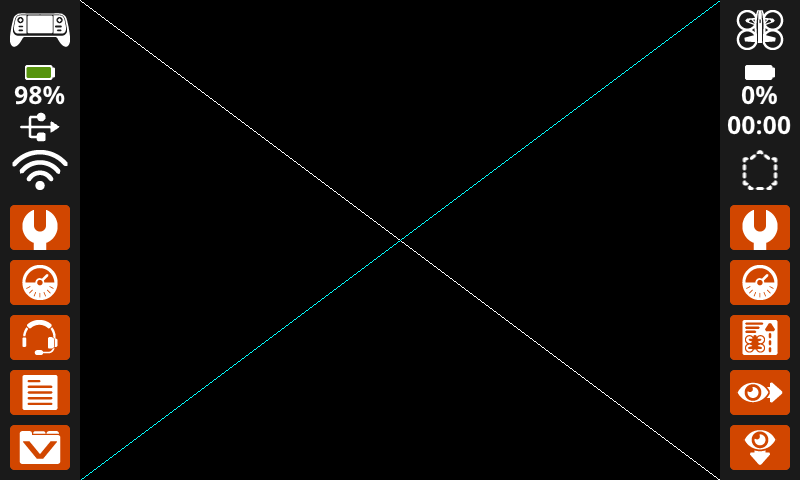
draw_line 은 현재 펜 너비 및 펜 색상을 사용하여 첫 번째 화면 좌표 (x1, y1) 에서 두 번째 화면 좌표 (x2, y2) 까지 선을 그립니다.
x 및 y 좌표는 set_origin를 사용하여 다른 원점을 설정하지 않는 한 기본 원점 (0, 0)을 사용합니다.
Usage:
controller.screen.draw_line(x1, y1, x2, y2)
매개변수 |
설명 |
|---|---|
|
선의 시작 x 좌표는 0에서 640 사이의 정수로 주어집니다. |
|
선분의 시작 y좌표는 0에서 480 사이의 정수로 주어집니다. |
|
선분의 끝점의 x좌표는 0에서 640 사이의 정수로 주어집니다. |
|
선분의 끝 y좌표는 0에서 480 사이의 정수로 주어집니다. |
# Make an X across the screen.
controller.screen.draw_line(x1=0, y1=0, x2=640, y2=480)
controller.screen.set_pen_color(CYAN)
controller.screen.draw_line(x1=0, y1=480, x2=640, y2=0)
draw_rectangle#
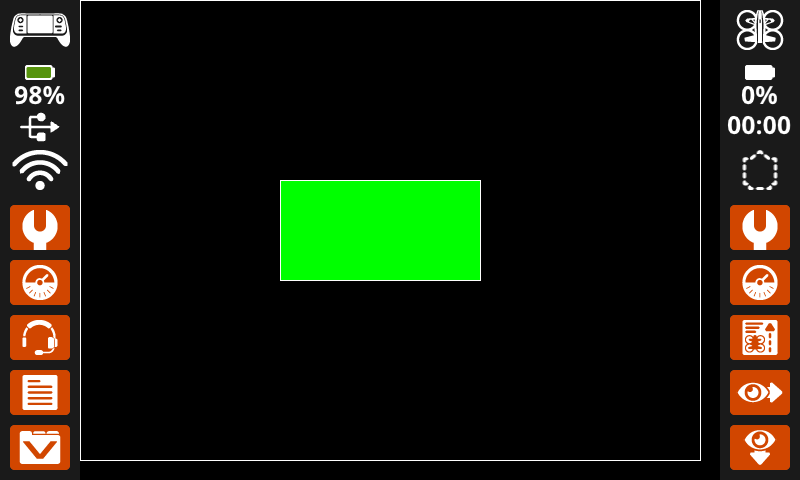
draw_rectangle 은 선택적 color 매개변수가 사용되지 않는 한 현재 펜 너비, 펜 색상 및 채우기 색상을 사용하여 사각형을 그립니다.
x 및 y 좌표는 set_origin를 사용하여 다른 원점을 설정하지 않는 한 기본 원점 (0, 0)을 사용합니다.
Usage:
controller.screen.draw_rectangle(x, y, width, height, color)
매개변수 |
설명 |
|---|---|
|
직사각형의 왼쪽 위 모서리의 x좌표를 0부터 640까지의 정수로 나타냅니다. |
|
직사각형의 왼쪽 위 모서리의 y좌표는 0에서 480 사이의 정수로 주어집니다. |
|
직사각형의 너비는 0에서 640 사이의 정수로 주어집니다. |
|
직사각형의 높이는 0에서 480 사이의 정수로 주어집니다. |
|
선택 사항입니다. 사각형의 채우기 색상을 설정합니다. 옵션은 다음과 같습니다.
|
# Draw two rectangles on the screen.
controller.screen.draw_rectangle(x=0, y=0, width=620, height=460)
controller.screen.draw_rectangle(x=200, y=180, width=200, height=100, color=GREEN)
draw_circle#
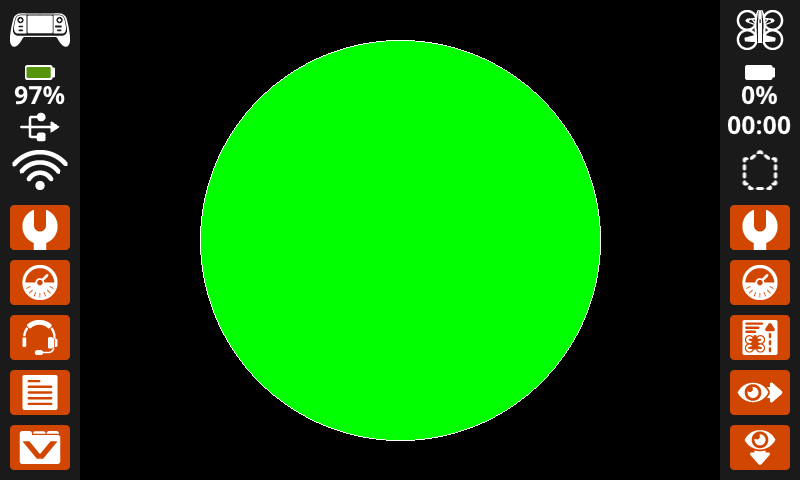
draw_circle 은 선택적 color 매개변수가 사용되지 않는 한 현재 펜 너비, 펜 색상 및 채우기 색상을 사용하여 원을 그립니다.
x 및 y 좌표는 set_origin를 사용하여 다른 원점을 설정하지 않는 한 기본 원점 (0, 0)을 사용합니다.
Usage:
controller.screen.draw_circle(x, y, radius, color)
매개변수 |
설명 |
|---|---|
|
원의 중심의 x좌표는 0부터 640까지의 정수로 주어집니다. |
|
원의 중심의 y좌표는 0부터 480까지의 정수로 주어집니다. |
|
원의 반지름은 0에서 480픽셀 사이의 정수로 주어집니다. |
|
선택 사항입니다. 원의 채우기 색상을 설정합니다. 옵션은 다음과 같습니다.
|
# Draw one green circle on the screen.
controller.screen.set_fill_color(GREEN)
controller.screen.draw_circle(x=320, y=240, radius=200, color=GREEN)
show_file#
show_file 은 사용자가 업로드한 이미지를 컨트롤러 화면의 x, y 위치에 표시하며, 선택적으로 크기 조정, 회전 및 알파 투명도를 적용할 수 있습니다.
Usage:
controller.screen.show_file(file, x, y, scale_width, scale_height, rotation, use_alpha)
매개변수 |
설명 |
|---|---|
|
사용자가 업로드한 이미지를 사용합니다. 제어판에서 이미지 이름을 수정하면 옵션이 변경됩니다. |
|
이미지의 수평 오프셋 값입니다. 픽셀 단위의 정수로 주어집니다. 양수 값은 이미지를 오른쪽으로 이동시키고, 음수 값은 왼쪽으로 이동시킵니다. |
|
이미지의 수직 오프셋 값입니다. 픽셀 단위의 정수로 주어집니다. 양수 값은 이미지를 아래로 이동시키고, 음수 값은 위로 이동시킵니다. |
|
선택 사항입니다. 확대/축소할 이미지 너비를 픽셀 단위의 정수로 지정합니다. |
|
선택 사항입니다. 확대/축소할 이미지의 높이를 픽셀 단위의 정수로 지정합니다. |
|
선택 사항입니다. 이미지를 회전할 각도(도)를 0에서 359 사이의 정수로 입력합니다. |
|
선택 사항입니다. 이미지의 알파 채널을 투명도에 사용할지 여부입니다. 옵션은 다음과 같습니다: |
# Display uploaded Image 1 in the top left corner.
controller.screen.show_file(IMAGE1, x=0, y=0)
# Display uploaded Image 1 scaled to the full screen.
controller.screen.show_file(IMAGE1, x=65, y=0, scale_width=640, scale_height=480)
# Display uploaded Image 1 with rotation of 180 degrees.
controller.screen.show_file(IMAGE1, x=-65, y=0, rotation=180)
# Upload an image with a transparent background.
# Display uploaded Image 1 with alpha channel enabled.
controller.screen.show_file(IMAGE1, x=0, y=0, use_alpha=True)
만지다#
pressing#
pressing 반환되고, 로봇 화면이 현재 눌러지고 있는지 여부를 나타내는 부울 값이 반환됩니다.
True– 화면이 눌리고 있습니다.False– 화면이 눌리지 않았습니다.
Usage:
controller.screen.pressing()
매개변수 |
설명 |
|---|---|
이 메서드에는 매개변수가 없습니다. |
# Play a sound when the screen is pressed.
while True:
    if controller.screen.pressing():
        controller.sound.play_note("C5", 500)
    wait(5, MSEC)
# Display different messages after the screen is pressed
while not controller.screen.pressing():
    wait(5, MSEC)
controller.screen.print("First message!")
controller.screen.next_row()
# Lift finger to press the screen again
while controller.screen.pressing():
    wait(5, MSEC)
while not controller.screen.pressing():
    wait(5, MSEC)
controller.screen.print("Second message!")
controller.screen.next_row()
x_position#
x_position 화면이 마지막으로 눌렸던 위치의 x 좌표를 픽셀 단위로 반환하며, 0(왼쪽)부터 640(오른쪽)까지의 정수 값을 갖습니다.
Usage:
controller.screen.x_position()
매개변수 |
설명 |
|---|---|
이 메서드에는 매개변수가 없습니다. |
# Play a high or low note based on where screen is pressed.
while True:
    if controller.screen.pressing():
        if controller.screen.x_position() > 320:
            controller.sound.play_note("C6", 500)
        else:
            controller.sound.play_note("C4", 500)
    wait(5, MSEC)
y_position#
y_position 은 화면이 마지막으로 눌렸던 위치의 y 좌표를 픽셀 단위로 반환하며, 0(상단)부터 480(하단)까지의 정수 값을 갖습니다.
Usage:
controller.screen.y_position()
# Play a high or low note based on where screen is pressed.
while True:
    if controller.screen.pressing():
        if controller.screen.y_position() > 240:
            controller.sound.play_note("C6", 500)
        else:
            controller.sound.play_note("C4", 500)
    wait(5, MSEC)
콜백#
pressed#
pressed 화면을 눌렀을 때 호출될 함수를 등록합니다.
Usage:
controller.screen.pressed(callback, arg)
매개변수 |
설명 |
|---|---|
|
컨트롤러 화면이 눌렸을 때 실행되도록 미리 정의된 함수. |
|
선택 사항입니다. 콜백 함수에 전달할 인수를 포함하는 튜플입니다. 자세한 내용은 매개변수가 있는 함수 사용을 참조하세요. |
# Play a sound when the screen is pressed.
def play_sound():
    controller.sound.play_note("C5", 500)

controller.screen.pressed(play_sound)
released#
released 화면이 해제될 때 호출될 함수를 등록합니다.
Usage:
controller.screen.released(callback, arg)
매개변수 |
설명 |
|---|---|
|
컨트롤러 화면이 해제될 때 실행되도록 미리 정의된 함수. |
|
선택 사항입니다. 콜백 함수에 전달할 인수를 포함하는 튜플입니다. 자세한 내용은 매개변수가 있는 함수 사용을 참조하세요. |
# Play a sound when the screen is pressed.
def play_sound():
    controller.sound.play_note("C5", 500)

controller.screen.released(play_sound)