配置颜色签名#

颜色特征是人工智能视觉传感器用来识别颜色的两种视觉特征之一。必须先配置颜色特征,传感器才能识别颜色。

**注意:**必须使用有线连接才能启用 AI Vision 实用程序并为机器人配置颜色特征。

创建颜色签名#

将纯色物体放在传感器前面#
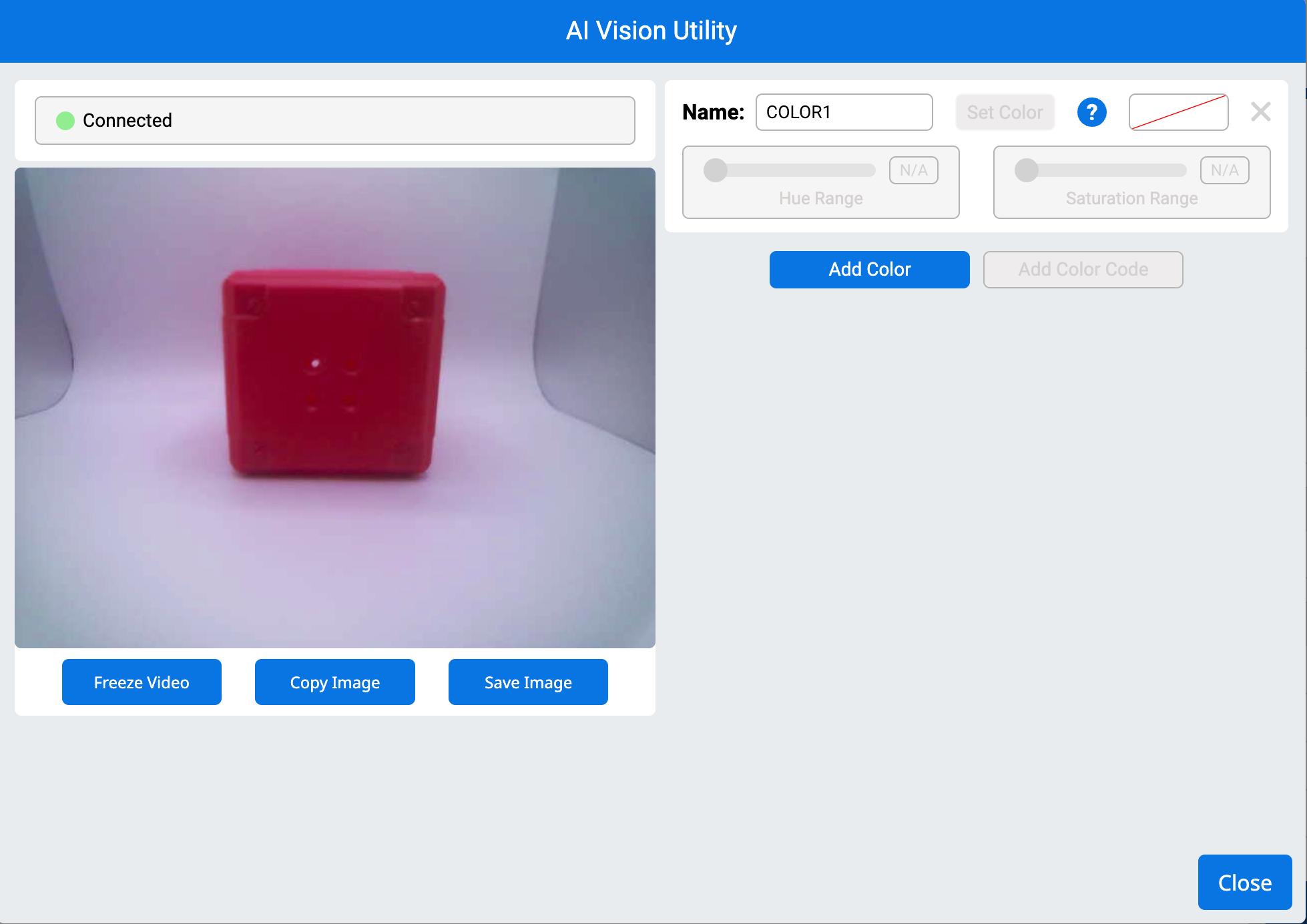
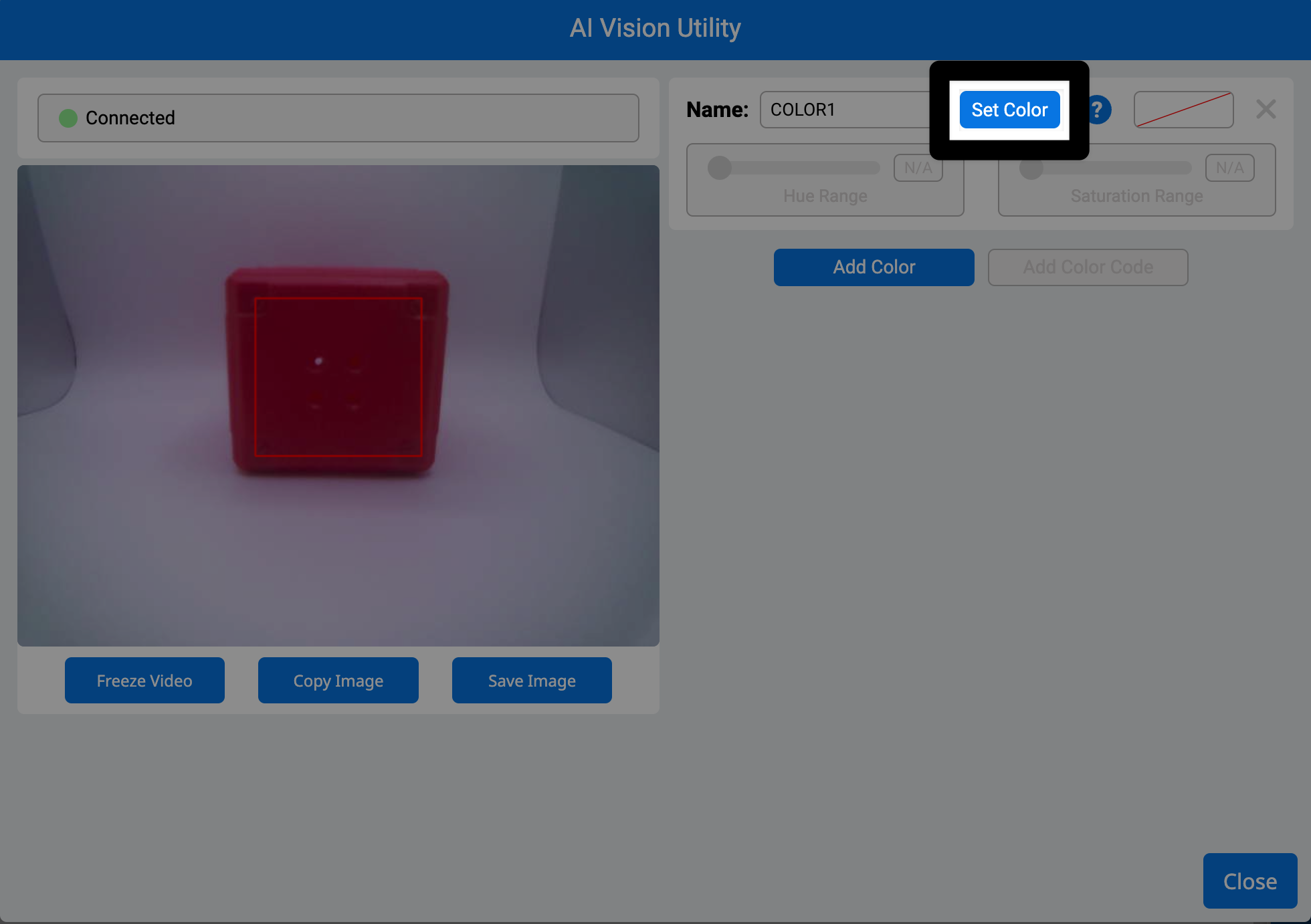
VEXcode AIM 中的 AI 视觉实用程序。左图显示机器人的摄像头反馈,白色背景中央有一个红色立方体。

将光标拖到对象上#

A red box will outline the selected color. The video below shows the cursor being selected and dragged to outline a section of the front of the red box to identify that color selection.

**注意:**保持在颜色区域内以避免包括可能影响检测的背景颜色。

选择设置颜色#

一旦设置了颜色,传感器就会将其保存为颜色特征

Same Utility as before with a red target box on the red cube, showing where the color was selected. On the right side of the window the Set Color button is highlighted to the right of the color name text box.

通过在“名称”文本字段中键入来重命名颜色签名#

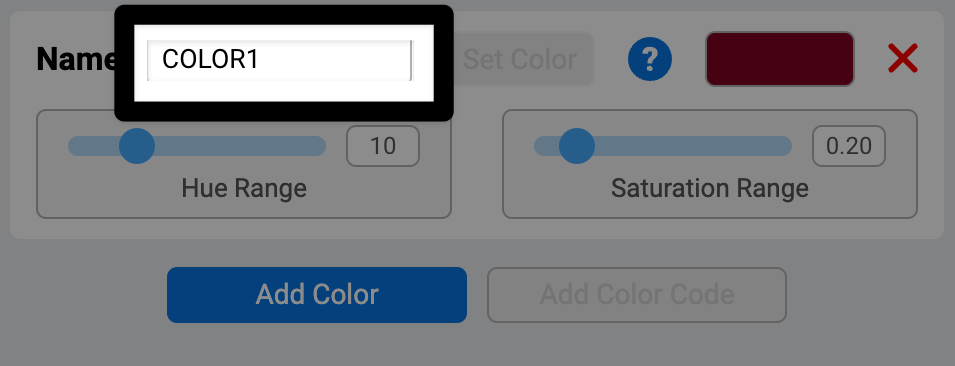
Zoomed in version of the same AI Vision utility window with a highlight on the Name text box of the color signature that was just set.

调整颜色特征#

调整色调范围#

Use the Hue Range slider to expand or narrow the range of colors around your selected hue. Watch the target box — increase the range until the box fully surrounds the object. The video below shows the target box change as the Hue Range is adjusted with the slider.

**注意:**不要走得太远,否则可能会包含不需要的颜色。

调整饱和度范围#

Use the Saturation Range slider to include lighter or dimmer versions of the color. Adjust it until the box stays locked on the object, even in different lighting. The video below shows the target box adjust as the Saturation Range is adjusted with the slider.

保存颜色签名#

选择“添加颜色”以设置更多颜色签名#

传感器一次最多可以跟踪 7 个颜色特征

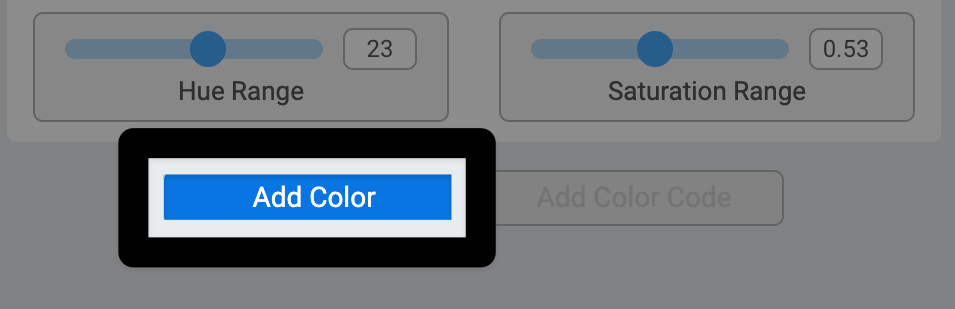
AI Vision Utility Window zoomed in on the right side with a highlight on the add color button, below the Hue Range slider.

选择“关闭”#

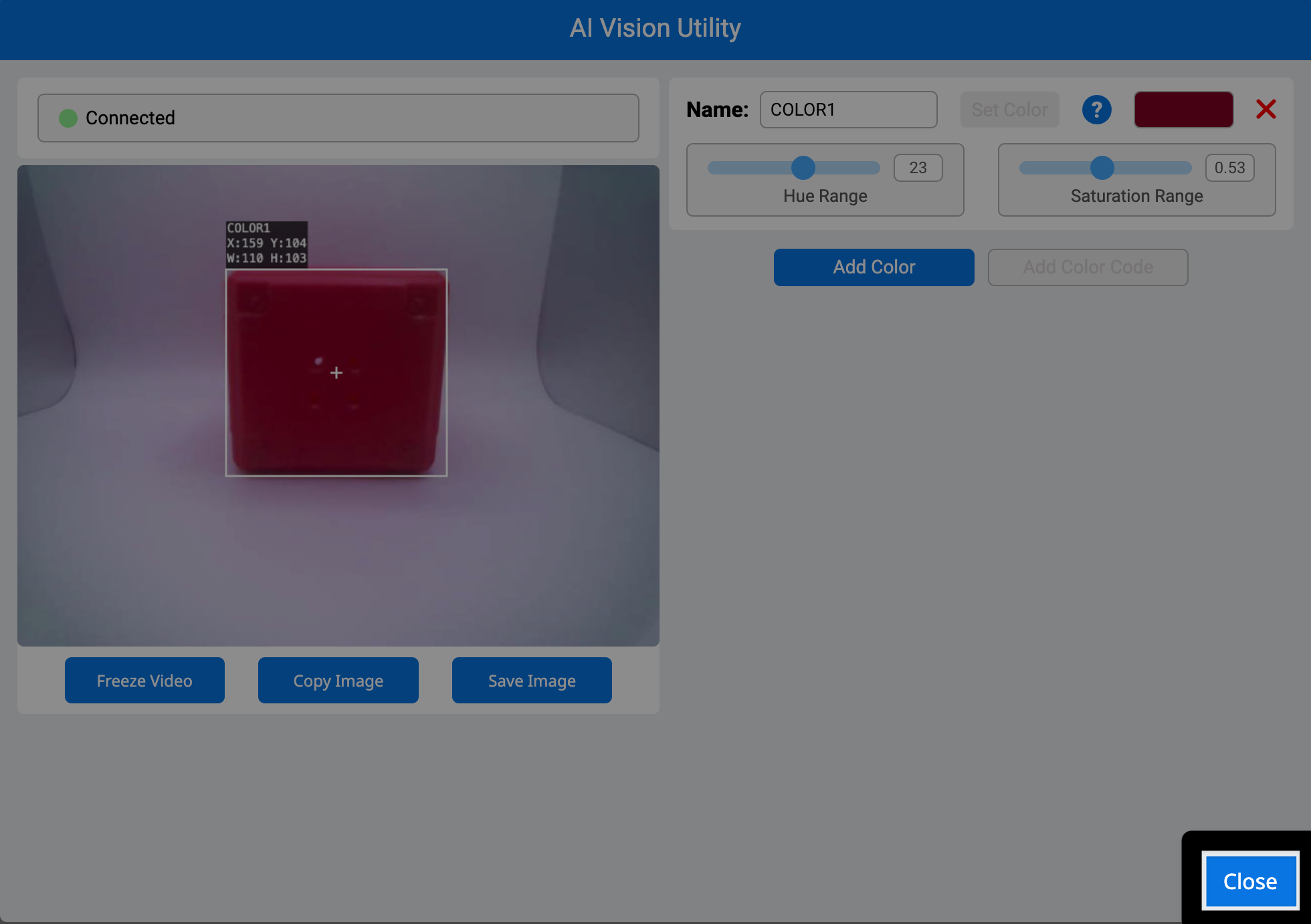
VEXcode AIM 中的 AI Vision Utility,右下角的关闭按钮突出显示。

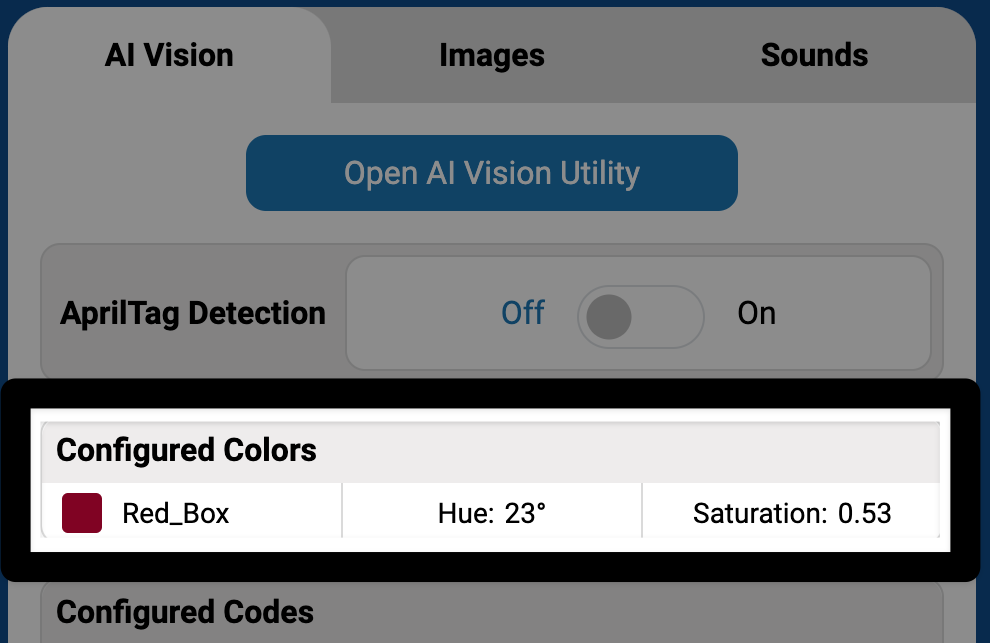
所有配置的颜色签名现在都将出现在 AIM 控制面板中。

VEXcode AIM 中的控制面板放大视图,其中“已配置颜色”部分被高亮显示。其中一行与之前配置的颜色相匹配。