上传自定义图像#

打开控制面板#

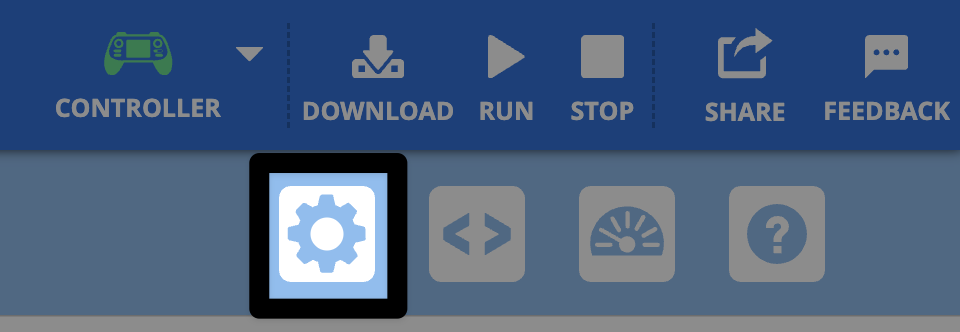
选择齿轮图标打开控制面板。

A screenshot of the upper left corner of the VEXcode AIR Toolbar, with the gear icon highlighted below the download icon.

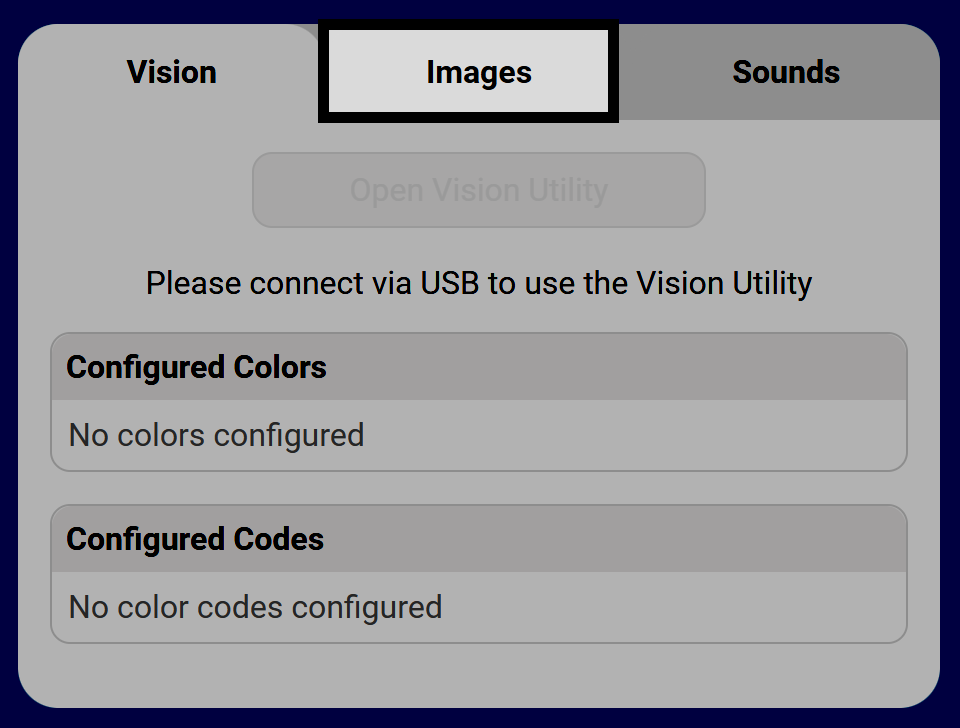
选择“图像”选项卡#

A screenshot of the the Control panel in VEXcode AIR, with the Images tab in the center hlighted.

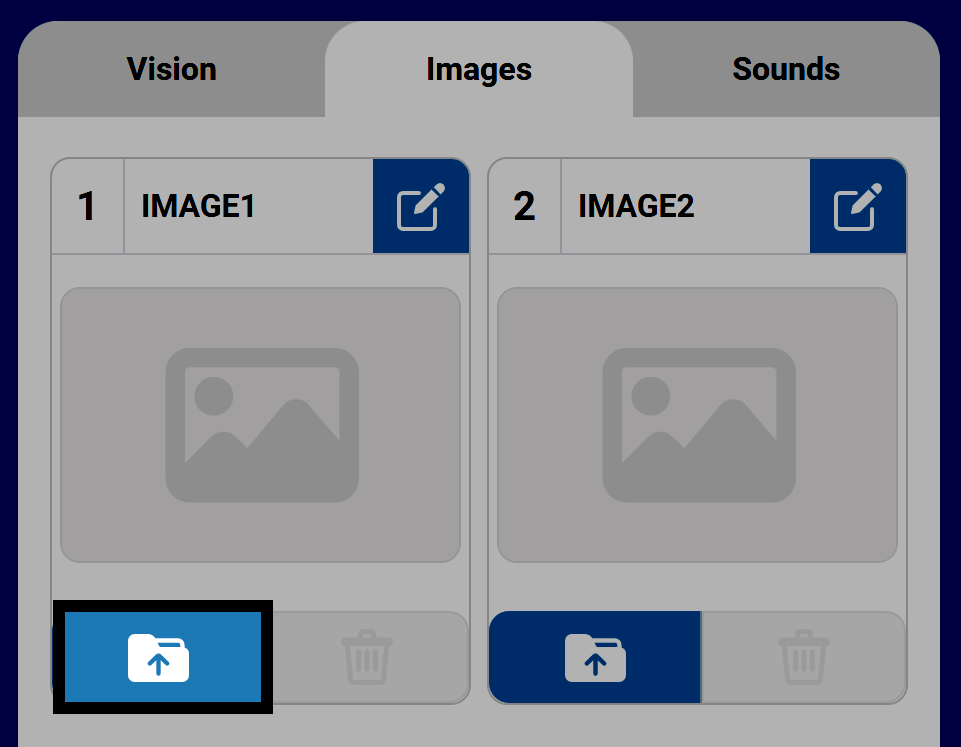
选择“上传”图标#

A screenshot of the top of the Images tab in the Control Panel open, showing the first row of the image table, with two image slots. The Upload button for image 1, with a file folder with an up arrow on it, in the lower left corner highlighted.

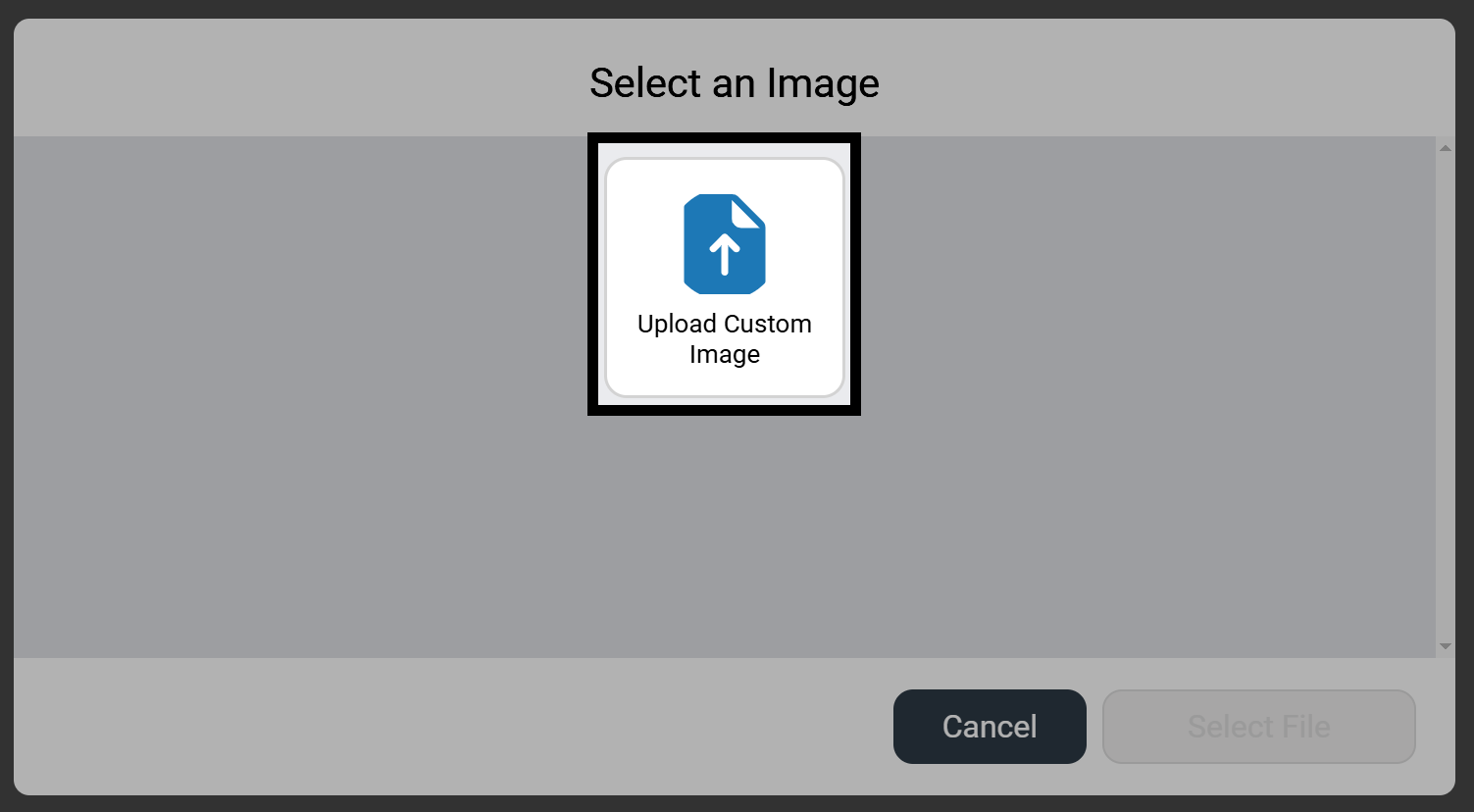
选择上传自定义图像#

要上传自定义图像,请选择上传自定义图像,然后选择选择文件以打开设备的文件导航。

**注意:**图像必须是小于 10 MB 的 PNG。

A screenshot of the Image selector reads Select an Image, and has a button reading Upload Custom Image in the center, with a paper icon with an up arrow on it, highlighted.

该图像现已可用#

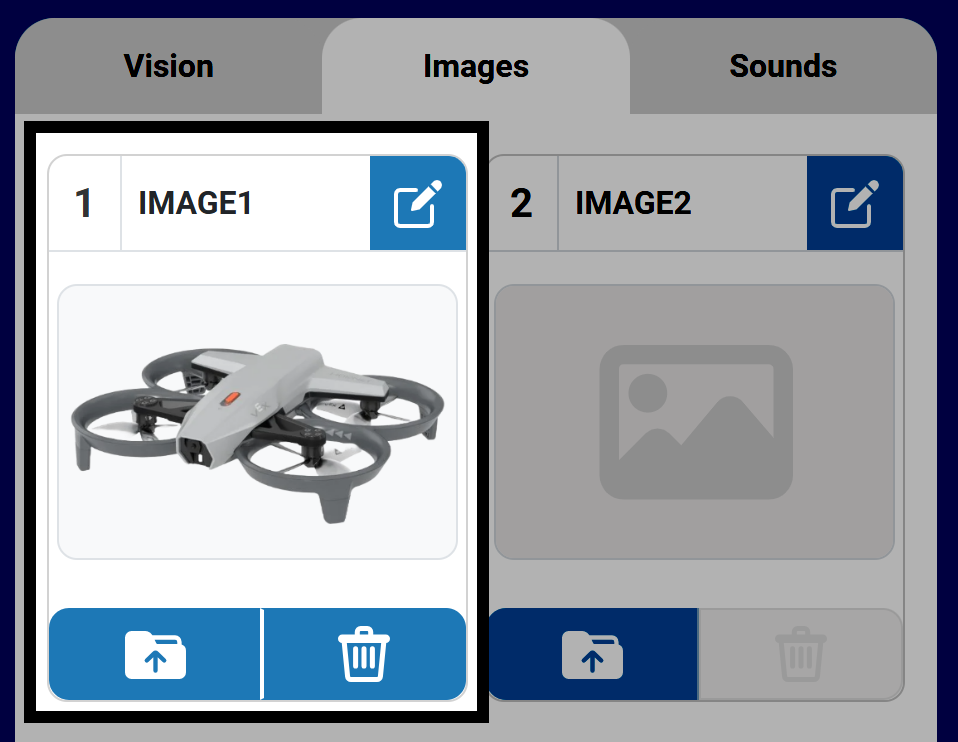
选择图片后,它将出现在控制面板中所选的插槽中。默认情况下,图片将被命名为 IMAGE1,其编号与图片上传到的插槽相匹配。

上传图片后,已上传图片插槽中的按钮将启用。这些按钮允许您覆盖、删除或重命名已上传的图片文件。

The same image of the top of the Image tab in the Control Panel open, now showing a picture of the drone in Image 1, and all buttons are active.

您可以在项目中使用自定义图像,方法是使用 BlocksPythonScreen 类别中的以下命令:

显示图像文件自定义图像#
[Select your image from the dropdown.]
显示图像文件 [IMAGE1 v]
# Change IMAGE1 to the name of your image
controller.screen.show_file(IMAGE1, x=0, y=0)

重命名图像文件#

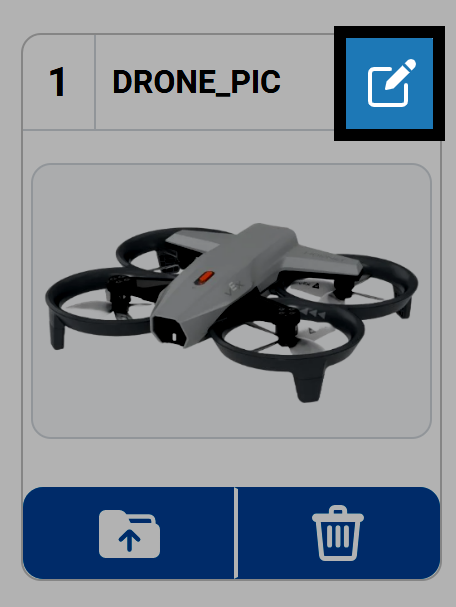
选择“铅笔”图标重命名图像。这将是您在项目中使用该图像文件时的名称。

**注意:**名称不能以数字开头,且长度不得超过 14 个字符。

A close up screenshot of slot 1 in the image tab, with the pencil edit icon to the right of the name text box highlighted. The name now reads Drone underscore pic.

删除图像文件#

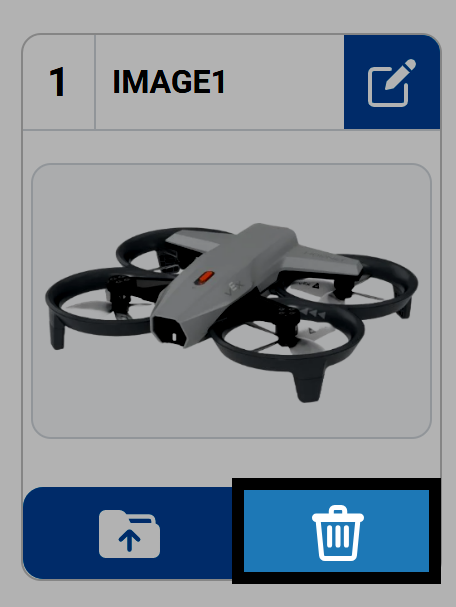
按下垃圾桶图标即可从插槽中删除图像文件。

The same image as the one previous, now with the trash can icon in the lower right corner of the image 1 section highlighted.

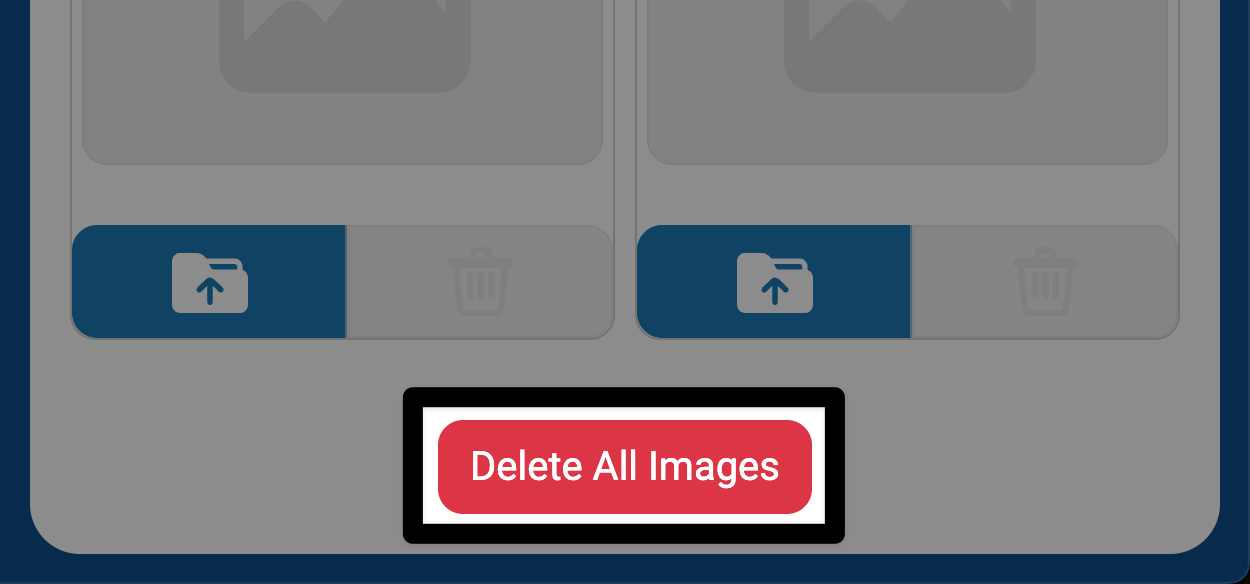
要一次删除所有图像,请选择“声音”选项卡底部的“删除所有图像”按钮。

A close up screenshot of the bottom of the Images tab in the Control Panel with the Delete All Images button highlighted.